Assembly Elements Context Menu
You can use the Assembly Elements Context Menu to add, modify, or perform actions on publishing elements.
The options in the context menu depend on the Locked/Unlocked status of the assembly and on the particular node, user license, security settings, and view of the assembly where it is invoked.
In the Assembly Elements tree of an assembly, right-click on a node in the tree to view the Assembly Elements Context Menu for that node. The following images show some (but not all) of the different Assembly Elements Context Menu options available for the different types of nodes. See Icons for descriptions.
Root Node Context Menu
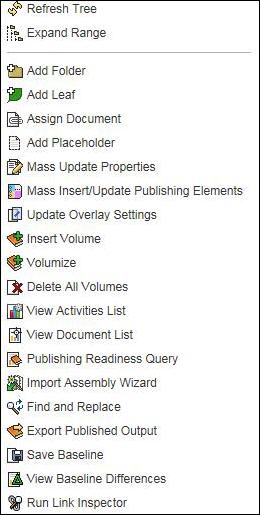
Folder Node Context Menu
The Promote, Demote, Move Up, and Move Down options availability depends on the position of the selected Folder element in the Assembly Tree. For example, if the folder element is the first in the range, then the Move Up option will not be presented in the context menu for such an element.
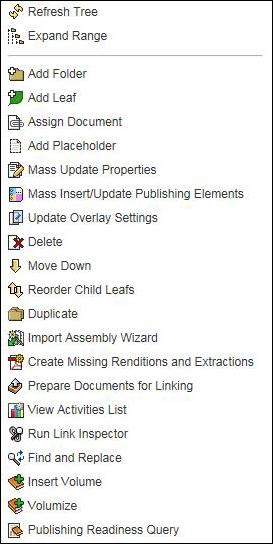
Leaf Node Context Menu
The Promote, Demote, Move Up, and Move Down options availability depends on the position of the selected Leaf element in the Assembly Tree. For example, if the leaf element is the first in the range, then the Move Up option will not be presented in the context menu for such an element.
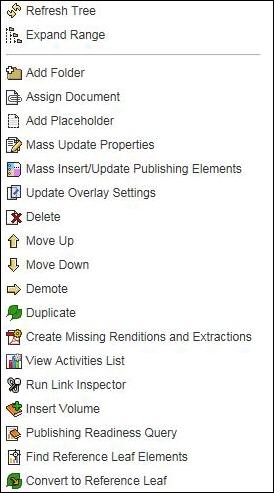
Reference Leaf Node Context Menu
The Promote, Demote, Move Up, and Move Down options availability depends on the position of the selected Reference Leaf element in the Assembly Tree. For example, if the reference leaf element is the first in the range, then the Move Up option will not be presented in the context menu for such an element.
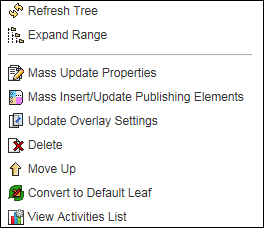
Document Node Context Menu
The Promote, Demote, Move Up, and Move Down options availability depends on the position of the selected Document element in the Assembly Tree. For example, if the document element is the first in the range, then the Move Up option will not be presented in the context menu for such an element.
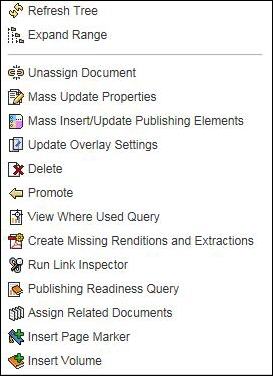
Placeholder Node Context Menu
The Promote, Demote, Move Up, and Move Down options availability depends on the position of the selected Placeholder element in the Assembly Tree. For example, if the placeholder element is the first in the range, then the Move Up option will not be presented in the context menu for such an element.
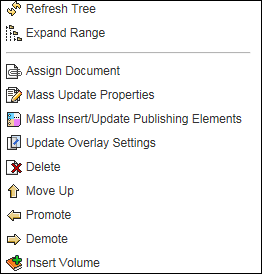
TOC Node Context Menu
The Move Left and Move Right options availability depends on the number of publishing elements assigned to the assembly tree element and the TOC position within this range. For example, if the TOC element is the first in the range, then the Move Left option will not be presented in the context menu.
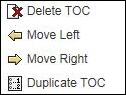
Page Marker Node Context Menu
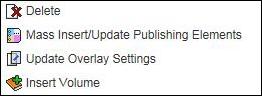
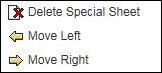
Special Sheet Node Context Menu
Includes cover page, tab sheet, and slip sheet.
The Move Left and Move Right options availability depends on the number of publishing elements assigned to the assembly tree element and the special sheet position within this range. For example, if the special sheet element is the first in the range, then the Move Left option will not be presented in the context menu. Includes cover page, tab sheet, and slip sheet.