Add Subsequent Sequences to Lifecycle
You can add subsequent sequences to lifecycle just as you add the first sequence. You can also use the Create Submission wizard to add sequences. For details, see Creating submissions.
To add subsequent sequences to lifecycle:
-
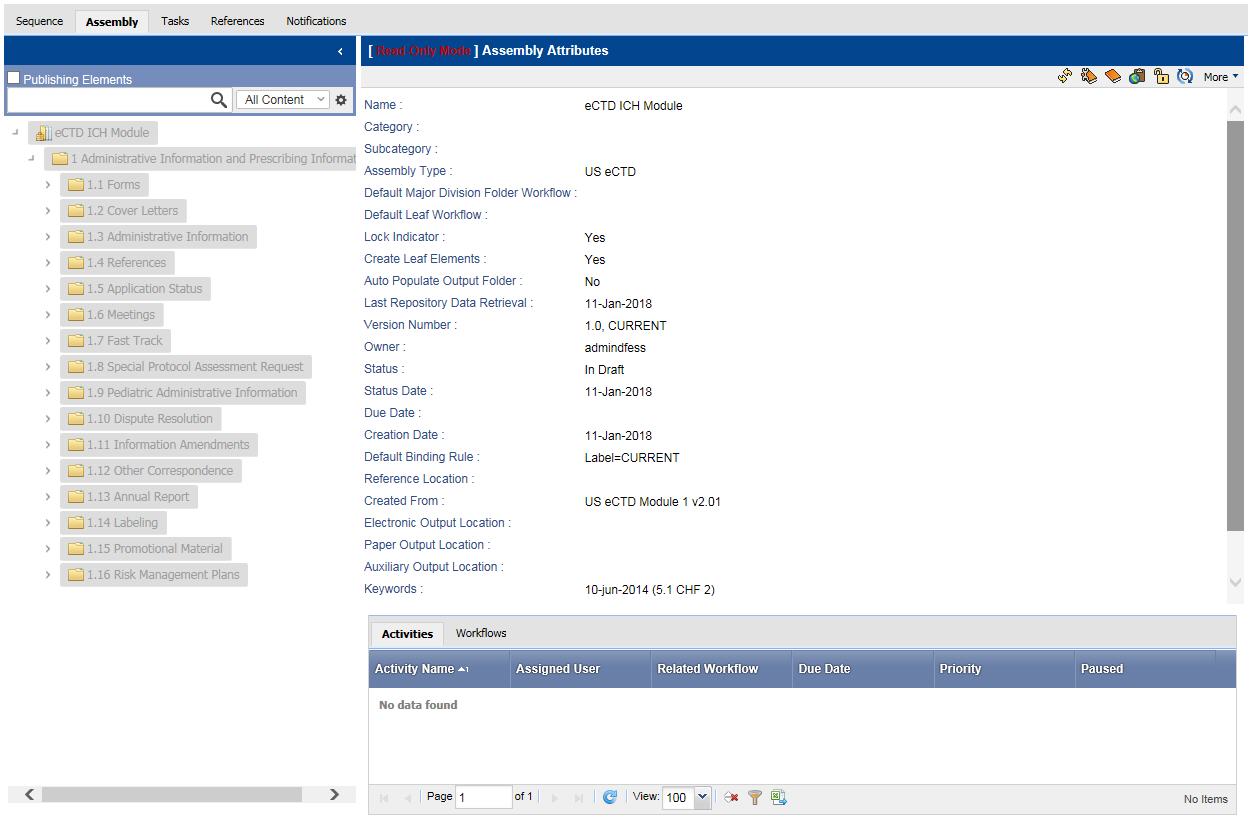
Click
 on the action button toolbar.
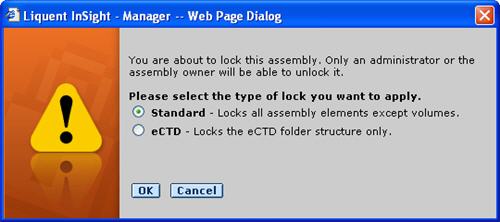
A message prompts you to select the lock type.
on the action button toolbar.
A message prompts you to select the lock type. -
Select
Standard to lock the entire assembly.
-
To add the assembly to lifecycle, click
 .
.
-
When you are prompted to confirm the addition, click
OK.