Lock Sequence Assemblies
When you are ready to add a sequence assembly to life cycle, you must lock it to prevent additional changes. Then you can add the sequence to life cycle. This creates the life cycle and makes the sequence assembly you used to create it the first finalized life cycle assembly.
Once an assembly is locked, only an administrator can make changes and synchronize the assembly with the DMS. It is recommended, however, that you lock the binding of all documents used in the assembly, thus preventing binding changes should the assembly be unlocked and synchronized.
You can manually lock an assembly or you can use the Change Submittal Status wizard to mark the assembly as submitted. This locks the assembly automatically. The Change Submittal Status wizard enables you to update a submission status after a sequence assembly has been received by the regulatory agency. When you change the status, the submission is finalized and you can use it in subsequent submission life cycle updates by adding it to the submitted view. In addition, the statuses of related entities (application, event, sequence, assembly) and key status attributes such as first submittal date are updated automatically.
Note: Only an administrator can unlock a locked assembly.
Manually Lock an Assembly
You can manually lock a sequence assembly to add it to a lifecycle.
To manually lock a sequence assembly:
- Click a link for the sequence whose assembly you want to lock.
- Click the Assembly tab to open the Assembly Attributes page.
- Optionally, review the assembly tree and any of its attributes.
- Click the assembly root.
Ennov InSight 7.2 Publishing
Lock Sequence Assemblies
- Click
.png) on the action button
toolbar.
on the action button
toolbar.
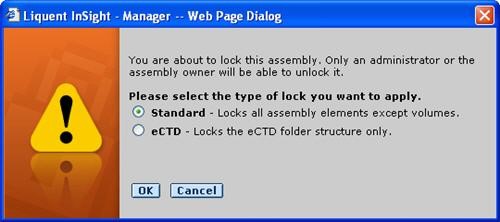
A message prompts you to select the lock type.
6.
Select
Standard
to lock the entire assembly.
Example
7.
Click
OK
.
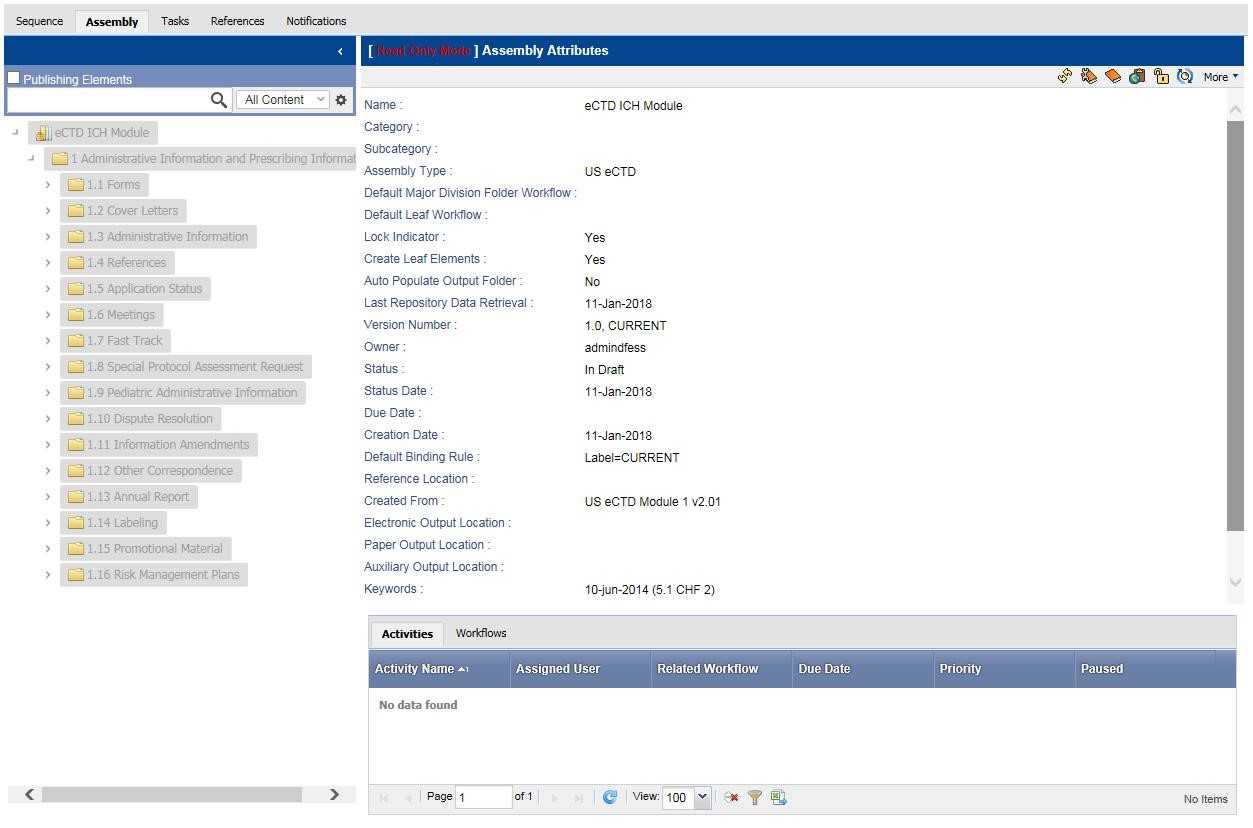
— Read-Only Mode appears before Assembly Attributes.
— Lock Indicator is set to Yes.
— A lock appears on the root in the assembly tree.
— When you expand the assembly tree, the elements are grayed out to show they cannot be changed.
Note: Although the sequence assembly is locked, you can still change attributes for the assembly root.
8. You can now add the locked sequence assembly to lifecycle.
Ennov InSight 7.2 Publishing
Lock Sequence Assemblies