
Special Sheet Publishing Settings
When you create a publication, you can insert special sheets, such as table of contents, cover pages, tab sheets, and slip sheets to aid navigation through your submission.
Special sheets can be inserted and deleted, individually or in bulk, where they are needed in the assembly. Special sheet settings control the properties of the paper on which the sheets are printed, and the text or content that pertains to the special sheet.
Special sheets and their settings are linked to the resource file update.
The printer publishing settings you choose control which paper types are available in the special sheets settings. Additionally, the general publishing settings control the preview file location where the tab and TOC preview files are stored.
Publishing settings are specific to the following modules:
— Electronic Lifecycle Publishing (ELP)
— Registered Document Analysis (RDA)
— Submission Planning and Tracking (SPT)
— Paper Review Publishing (PRP)
Special Sheets
Special sheets consist of cover pages, tab sheets, slip sheets, and TOCs. You can insert special sheets to aid navigation through a submission. Special sheets can be inserted individually or in bulk where they are needed in the assembly. Special sheets settings control the properties of the paper on which the sheets are to be printed, and the text or content. Special sheets and their attributes are linked to the publishing settings for an assembly. The publishing settings control the printer, and therefore the paper types, that are available for printing special sheets.
You can insert special sheets for any of the following:
— Assembly
— Folders
— Leaf elements
— Documents
— Volumes
When you insert a special sheet for an element (for example, a folder), the sheet is inserted for all children of the element that meet the criteria of the chosen element type.
When adding special sheets in bulk, any leaf marked as a native file leaf or reference leaf is ignored. Special sheets cannot be added to native file leaf elements or reference leaf elements, and are ignored during publishing.
After inserting special sheets, click Volume  to refresh the Volume Special
Sheets pane and display the inserted special sheets.
to refresh the Volume Special
Sheets pane and display the inserted special sheets.
Move Special Sheets
You can promote and demote cover pages, tabs, slip sheets, and TOCs that are assigned to assembly elements. Following assembly elements are:
— Assembly
— Folder
— Leaf elements
— Documents
— Page markers
Special Sheets Commands
You can reorganize the elements in the assembly tree. You can move elements up and down, and you can promote and demote elements.
| Command | Description |
| Move Up | Moves an element to a location above its current position in the assembly tree, one position at a time. |
| Move Down | Moves an element to a location below its current position in the assembly tree, one position at a time. |
| Promote | Moves an element one level to the left in the assembly tree hierarchy. |
| Demote | Moves an element one level to the right in the assembly tree hierarchy. |
| Delete | Removes an element from the assembly tree structure; does not delete a document from the repository. |
Promote or Demote a Special Sheet
You can promote a special sheet to earlier in the assembly, or demote a special sheet to later in the assembly.
Right-click the special sheet you want to move and choose one of the following:
| Option | Description |
| Move Left: | Promotes the special sheet by moving it to the left. |
| Move Right: | Demotes the special sheet by moving it to the right. |
The special sheet moves to the left or right of the adjacent element.
Overlay Templates
Overlay templates enable you to add headers, footers, and other elements to the pages of your publication.
This includes page numbering and other variable data from Ennov InSight , resolved during publishing. Documents, TOCs, and cover pages may use the same or different overlay templates.
Cover page templates are similar to overlay templates, but they also allow variable placeholders in the body of the cover page.
Overlay Template File
Ennov InSight enables you to merge two PDF files so you can customize documents with headers and footers or apply a watermark.
You can apply different overlay templates to cover pages, TOCs, and documents in a submission. This effect is similar to that of a commonly used technique using transparencies and paper originals. The overlay information is printed onto a transparency, the transparency is placed onto a photocopier, and another document is placed on top of the transparency with the output being a merger of the two documents:
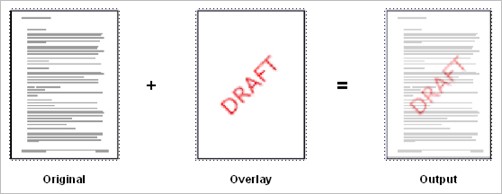
An overlay file is a PDF file that can contain a combination of fixed text and variables each page, including the following Assembly variables:
— Paper
— Electronic
— Variables that contain other variables
— Variables that contain formatting for other variables
— Data administration variables
— System-defined
— Ennov InSight
— Repository
— User-defined
You can create overlays in any document format that can be subsequently converted to PDF. Overlay files usually contain a single page, but you can define additional pages with an alternative page size or orientation that Ennov InSight can apply when source pages have different sizes. For examples of overlay files, refer to the samples provided for you in the installation files.