
Auto Upload and Process Acknowledgement Files
Ennov InSight provides you with the ability to select an acknowledgement file to execute using the wizard, or to upload the file automatically. However, these actions can be performed only if the required settings are configured during the application server installation.
Acknowledgement Wizard Make sure that:
- Location for XEVMPD Acknowledgement file has correct path to the folder <Folder Name >, which contains an additional folder with the name processed for the files that are already uploaded by the system.
- Defined Interval field has the number in minutes that corresponds to the time period for the system to check this folder for files.
- XEVMPD Acknowledgement Force Import field, for acknowledgement files that have related submission files that were created outside of the Ennov InSight system, is set to Yes. The default value is set to No.
When the file is uploaded by the system automatically, you can receive an alert in Alert Center about the processed file. You also can receive the details via email notification or by using both email and Alert Center functions.
A message appears in the Notes section of the System Alert to indicate that files have been imported using the Force XEVPRM Acknowledgement Import
functionality.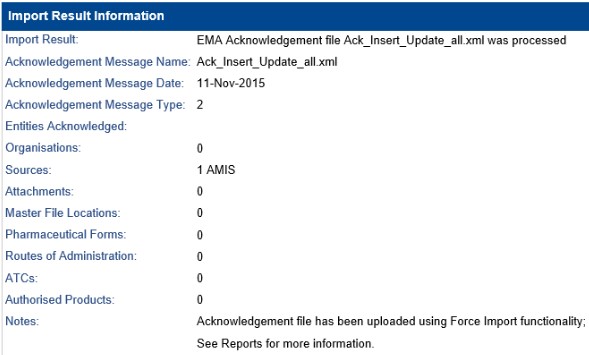
Note: To receive notifications regarding auto uploaded XML acknowledgement files, you must create an XEVMPD Import Result notification first.
| 11 - Auto Upload and Process Acknowledgement Files | 162
If the acknowledgement file that is imported by Force XEVPRM Acknowledgement Import functionality has an EV Code identical to any already existing in the Ennov InSight system, the number of imported entities is displayed in the result table in the System Alert and XEVMPD Acknowledgement Wizard Import XEVPRM Acknowledgement Result page.
If you have configured acknowledgement file upload automatically through the application server setup, you do not need to execute the wizard manually because all required actions will be performed by the system.
Submission WizardThe system can show the predefined location path on the Create XEVPRM Confirmation page if the settings were configured during application server installation:
• The Location for XEVMPD Submission field should have the correct path to the folder <Folder Name > , where the system will put the created ZIP file.