Post-Installation Tasks
Before you can use any Calyx RIM 6.2 CHF, you must perform post-installation tasks.
Important: After each Certified Hotfix upgrade,
Calyx RIM drops and recreates all views. This affects any custom database objects that have been created and granted rights against any of the
Calyx RIM database objects. This also affects each customized report (query) which may need to be recreated. If you have any customization applied, you will need to load them back after the upgrade is completed.
After you install
Calyx RIM
6.2 CHF:
-
Clear temporary Internet files in Internet Explorer.
- In the Internet Explorer Tools menu, select Internet Options.
- On the Internet Options dialog box, click Delete.
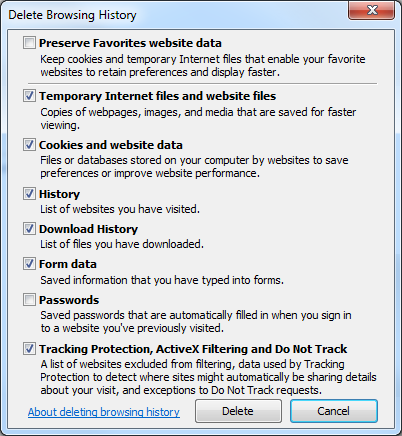
- On the Delete Browsing History dialog box, select the following options and then click Delete:
- Temporary Internet files and website files
- Cookies and website data
- History
- Download History
- Form data
- Tracking Protection, ActiveX Filtering and Do Not Track