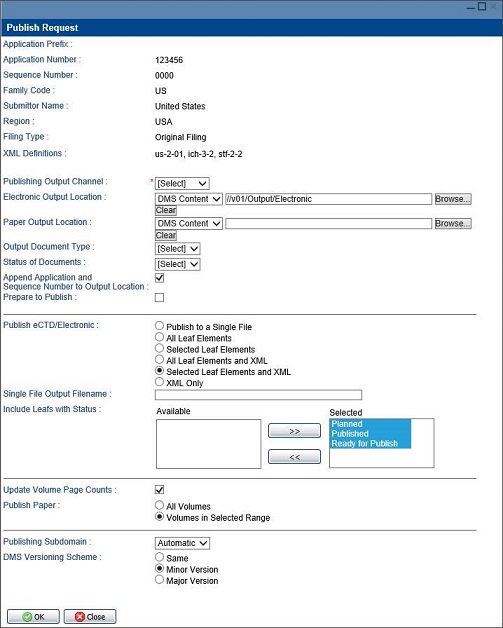
You can submit a paper publishing request and customize its details such as page counts and versions.
To submit a paper publishing request:
-
On the Assembly tree, do the following:
- For a lifecycled sequence assembly, choose
Publishing
view above the assembly tree.
- Click the assembly root, a volume, a folder, a leaf, or a document.
-
From the action bar on the right, click
 .
.
-
On the
Publish Request page, choose
Paper from
Publishing Output Channel list.
-
To choose the repository location to publish the paper publication, click
Browse.
Note: If this is a Standalone assembly, do not check
Append Application and Sequence Number to the Submission Output Location.
-
Check
Prepare to Publish to create PDF renditions if you are using the
Calyx RIM rendering and publishing services.
-
Use the
Update Volume Page Count option to update the volume page counts from the publish request screen.
-
Next to
Publish Paper, select which volumes to publish:
-
All Volumes publishes all volumes in the submission.
-
Volumes in Selected Range publishes only those volumes that start in the node you have selected to publish.
-
In the
Publishing Subdomain list, select the target domain.
Note: If you run Prepare to Publish for the assembly before submitting a publishing request, renditions and extractions created during the publish request are not sent to the
Calyx RIM Rendering publishing subdomain you select. They are processed according to the job routing settings defined for
Calyx RIM Rendering in Domain Manager.
-
Next to
DMS Versioning Scheme, choose one of the following for the published output files:
-
Same indicates the published output files should have the same version number as previous output. (Choose this when you are publishing to a file system.)
-
Minor Version indicates the published output files should be increments to a minor version.
-
Major Version indicates the published output files should be increments to a major version.
Note: OpenText Content Server 9.5 does not support minor versions.
-
Click
OK to submit a publish request. A message confirms the publish request has been successfully sent.
-
Choose
to view the status of your publication request.
-
When the job is complete, navigate to the publish output location and confirm publication.
When publishing paper volumes, regardless of where invoked, the
Publish All Volumes option will output all publishable volumes in your assembly.