You create an assembly template from an existing template, assembly, or a submitted or approved view.
The existing attribute values of the selected element is inherited to the new assembly template, minimizing the need for you to enter data.
To create an assembly template, you must have the appropriate security privileges.
To create an assembly template based on a template, assembly, or a submitted or approved view:
-
On the home page, click
.
-
On the
Create Template page, click
Existing Template, Assembly or View.
-
Click
Browse
to find and select the template, assembly, or view using the
Search Assembly Wizard.
-
On the
Search Options
window, choose an assembly type from the
Assembly Type to Search
list, and click
Next.
-
On the
Assembly Query Parameters
window, use
Search
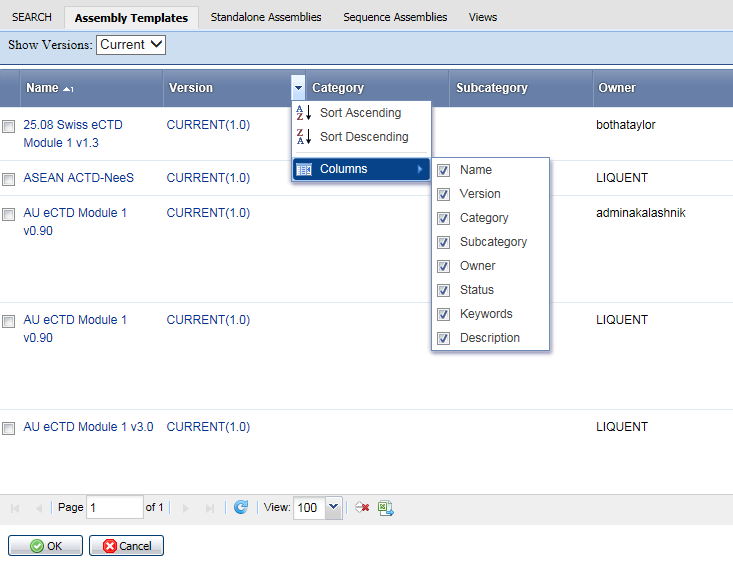
to find an assembly, or you can choose an assembly from one of the other tabs:
Assembly Templates,
Standalone Assemblies,
Sequence Assemblies, or
Views.
- Columns in the grid can be sorted in ascending or descending order using the options for each column heading.
- Columns in the grid can be shown or hidden using the options for each column heading.
- Move your pointer over a column heading and click the arrow next to the heading name to view the options.
-
Select an assembly and click
OK.
On the
Create Template window, the assembly you selected appears in the Browse field.
-
Choose a
Use Source Assembly Publishing Settings Library option:
-
Yes
= The new assembly template inherits the Publishing Settings Library used in the source assembly you have selected. Selecting
Yes also provides the option to
Import Publishing Elements (choose Yes or No).
-
No
= You must select a PLT from the
Publishing Settings Library
field that appears when you choose No.
Note: If an
Approved View
is selected as the source assembly for creation, the
Publishing Settings Library option will appear in place of the
Use Source Assembly Publishing Settings Library
option. Choose a Publishing Settings Library from the list.
-
In the
Retarget Copied Reference Leafs
field, set the option for reference leafs in your new assembly template:
- Retarget Copied Reference Leafs
- Preserve Copied Reference Leafs
-
Save.
-
On the
Create Assembly window, enter a name for your new assembly and enter attribute values for the assembly.