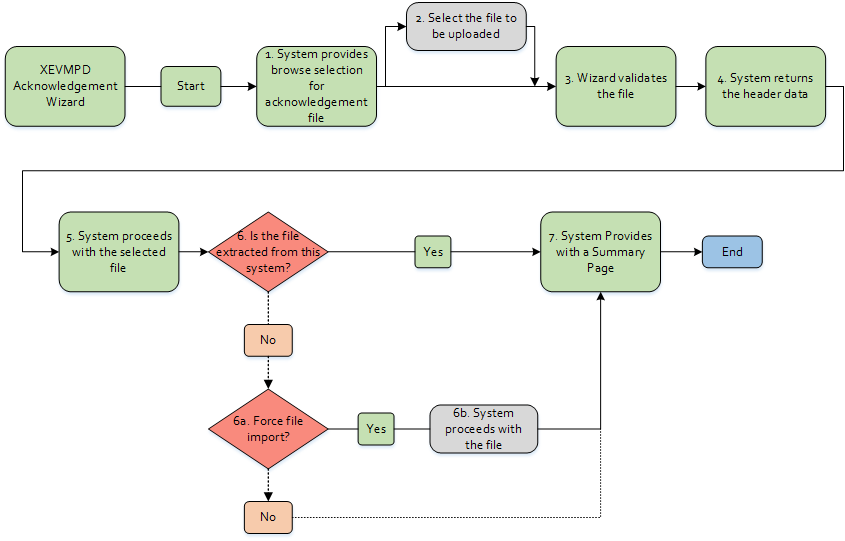
On the
Force XEVPRM Acknowledgement Import page:
- If the submission file for the selected acknowledgement file has been created using the Calyx RIM system, the following is stated:
1. No input is required on this page.
- If the submission file for the selected acknowledgement file has been created using the external system, the following is stated:
XEVPRM was not exported from this system. Would you like to run Force Acknowledgement Import? - and the values available for selection in the
Force Import drop-down field are
Yes and
No. To upload your file, select
Yes.
On the
Import XEVPRM Acknowledgement Results page, the results of the import are presented with the resulting information about the file (which entities were successfully uploaded and what kind of errors occurred). If
Yes has been selected, in addition to import results, the Imported by Force information appears with the number of imported entities.