Monitor Server Settings
Use the Server Settings options to monitor or control user sessions, general configuration, and e-mail settings.
-
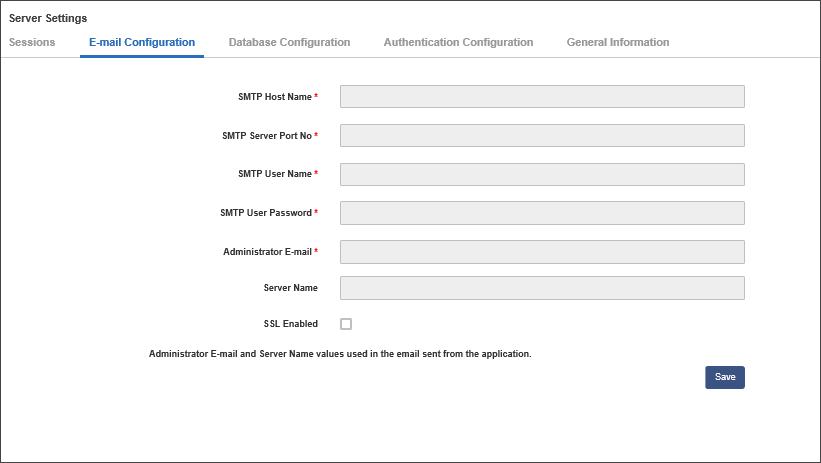
To configure e-mail notification, select the
E-mail Configuration tab and provide details to the following fields:
Field Name Description SMTP Host Name* Required value. Specifies the host name of the SMTP server. SMTP Server Port No* Required value. Specifies the port number of the SMTP server. SMTP User Name* Required value. Specifies the user name for the SMTP server. SMTP User Password* Required value. Specifies the user password for the SMTP server. Administrator Email * Required value. Specifies the E-mail ID of the administrator and the value used in e-mail sent from the application. Server Name Specifies the name of the server and the value used in e-mail sent from the application. SSL Enabled When selected, indicates that SSL capability is enabled. If enabled, you can receive e-mail notifications through an external SMTP host name, which can be entered in the following format: smtp.gmail.com Save Saves the configuration settings.