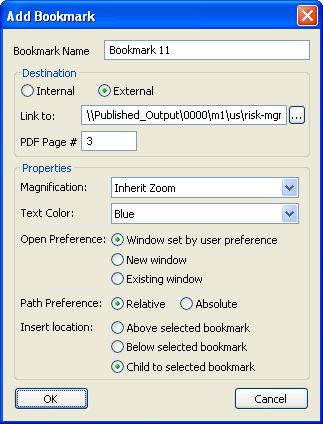
Use the
Add Bookmark dialog options to set the destination and properties for a bookmark.
To add bookmark:
-
In Acrobat, open the PDF file that you want to add bookmarks to and choose
.
-
In the
Link and Bookmark Manager window, select
Bookmarks and click
Reload.
-
In the bookmark list, select a bookmark where the new bookmark will be added.
-
Click
Add to open the
Add Bookmark dialog.
-
In the
Add Bookmark dialog, select the
Destination and
Properties attributes for the new bookmark.
-
To add the bookmark in the
Link and Bookmark Manager table, click
OK.
-
Click
Save in the Acrobat toolbar to save your changes.