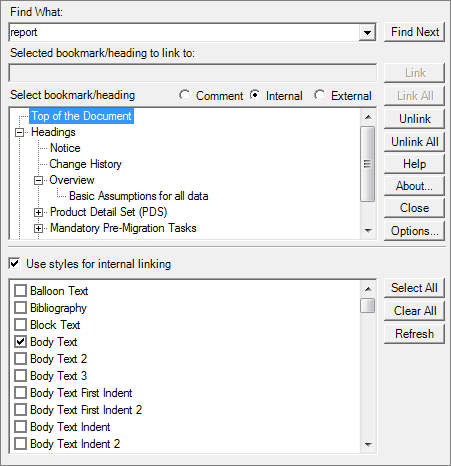
Selecting Internal Link Targets Internal links that are created with SmartLink for Word will function in PDF documents that are rendered outside of InSight. In SmartLink for Word, in the Select bookmark/heading section, select Internal. The internal links appear under Select bookmark/heading. Do any of the following: To link to the top of the document, double-click Top of the Document. To link to a heading, expand Headings and double-click the selected heading. To link to a bookmark, expand Bookmarks and double-click the selected bookmark. Click Link. Related referenceInternal Link TargetsHomeEntering Search TextLinking TargetsDuplicate DocumentsInternal Link TargetsSelecting Internal Link Targets
Selecting Internal Link Targets Internal links that are created with SmartLink for Word will function in PDF documents that are rendered outside of InSight. In SmartLink for Word, in the Select bookmark/heading section, select Internal. The internal links appear under Select bookmark/heading. Do any of the following: To link to the top of the document, double-click Top of the Document. To link to a heading, expand Headings and double-click the selected heading. To link to a bookmark, expand Bookmarks and double-click the selected bookmark. Click Link. Related referenceInternal Link TargetsHomeEntering Search TextLinking TargetsDuplicate DocumentsInternal Link TargetsSelecting Internal Link Targets