Selecting External Link Targets
-
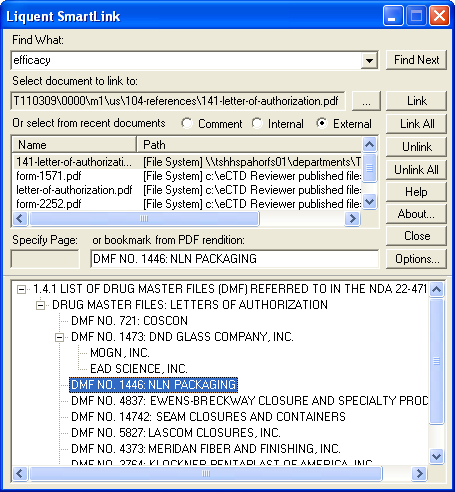
In the
SmartLink for Word window, under the
Select document to link to field, select
External.
-
Do one of the following:
- To select a new target document, next to
Select document to link to, click
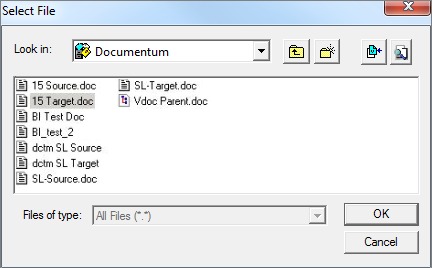
 and then locate and select a document in the
Select File dialog:
and then locate and select a document in the
Select File dialog:
After selecting a file, if there is more than one version of the document in the DMS, click the Select Version icon:
 . Choose the version and click
OK.
. Choose the version and click
OK.
- To link to a previously used target document, under Or select from recent documents, double-click a listed document.
- To view a target file, under Or select from recent documents, right-click on a document and select View document.
- To remove a document from the recent documents list: under Or select from recent documents, right-click on a document and select Remove document.
- Items in your Recent Document list maintain the original version number or label (if selected). If you reuse the link from the recent document list, but are unaware if it was bound to a label or version, we recommend that you remove the instance of the document in the Recent Document list and then navigate in your system to the preferred target document and select it.
- To select a new target document, next to
Select document to link to, click