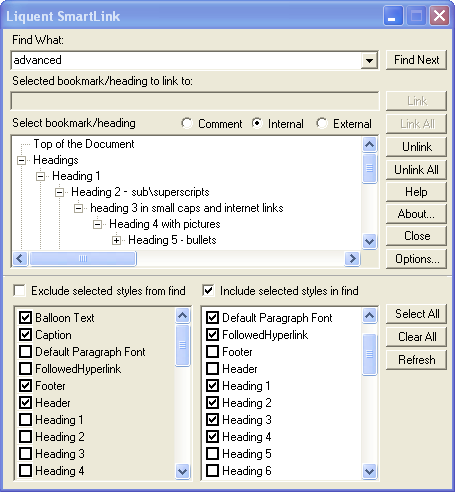
Show Include/Exclude Styles
Use the Show Include/Exclude Styles option to specify document styles to include in, or exclude from, your search.
-
In
Linking add-in (Word), click
Options and select
Show Include/Exclude Styles. The exclude/include style options appear at the bottom of the SmartLink dialog.
- Include selected styles in find - Enables you to select styles to include in the search. For example, if only the style Heading 1 is selected, SmartLink for Word will find only the words in the Find What box that are also tagged with the Heading 1 style. If the Include selected styles in find check box is selected and no styles are selected, no styles are searched and no matches to the search term will be found. The list of available styles is created from the styles in the document template.
- Exclude selected styles from find - Enables you to select styles to exclude from the search. For example, if the style Heading 1 is selected, SmartLink for Word will ignore all text tagged with the Heading 1 style. If the Exclude selected styles from find check box is selected and no styles are selected, all styles are searched. The list of available styles is created from the styles in the document template.
-
Do any of the following:
- To exclude specific styles in the search, select Exclude selected styles from find and then indicate the styles to exclude.
- To exclude all styles in the search, select Exclude selected styles from find and then click Select All.
- To include specific styles in the search, select Include selected styles in find and then select the styles to include.
- To include all styles in the search, select Include selected styles in find and then click Select All.
- To refresh the active style list, click Refresh.
-
To find the next occurrence of the search term, click
Find Next.
Note: If you use search folders and a folder contains multiple files with the search term in the file name, a dialog box with the list of files is displayed. Select the link target file and click OK.