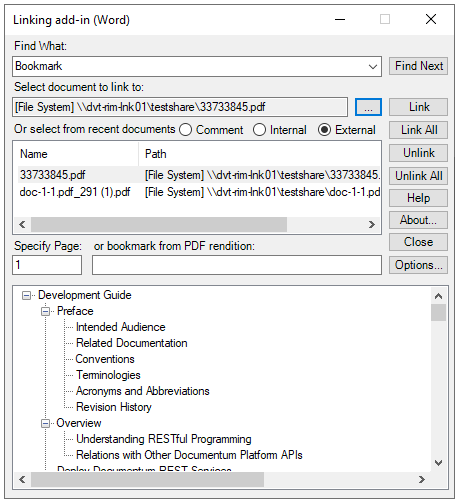
Use the
Show PDF Bookmarks option to locate bookmarks in rendered PDF documents to link from a Word document.
To locate bookmarks in rendered PDF documents:
-
In a Word document, highlight the text to create a link.
Linking add-in (Word)
-
In the
Linking add-in (Word) window, click
.
The additional options appear at the bottom of the
Linking add-in (Word) window.
-
In the
Select document to link to field, select
External.
-
Browse to a rendered PDF document that includes bookmarks.
The bookmarks in the selected PDF rendition are listed at the bottom.
-
In the
Specify Page or bookmark from PDF rendition fields, do one of the following:
| Action
|
Option
|
| To set a page number as a target in the selected PDF document:
|
Use
Specify Page.
|
| To bookmark from PDF rendition:
|
Use the
bookmark from PDF rendition in the bookmark menu that appears in the box below the page/rendition fields, double-click a node to set the link to that document. The title of the selected document appears in the
bookmark from PDF rendition field.
|
-
To set a PDF rendition bookmark as a target to the selected text in your Microsoft Word document, click
Link.