Page Stamper Examples
Examples of how to use the Page Stamper function.
Example of page stamping in portrait mode on a portrait page:
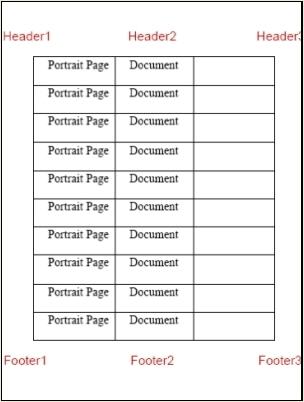
Example of page stamping in portrait mode on a landscape page:
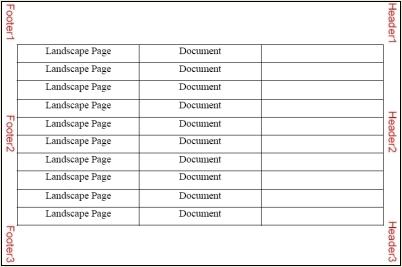
Example of page stamping in landscape mode on a portrait page:
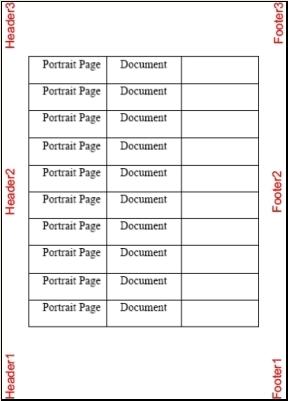
Example of page stamping in landscape mode on a landscape page.
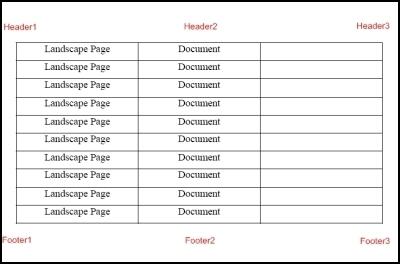
Example:
If you want to insert a line break between the text, type #LF#. For example, Sample Text #LF# Document will result in the following:
                               Sample Text
                               Document
Sample
Document
If you want to insert a page number(s) as a header or footer, type #p#. For example, Sample Page #p# will result in the following: Sample Page 1
If you want to insert sequential page numbers starting from a specific page, type #f# in Type your own text and specify the pages by selecting the option Pages under Page Range.
For example, consider a document of 20 pages. If you specify 15 and 20 in the Pages option under Page Range and type " Sample Page #f#", Sample Page 1 will be stamped on page 15 of the document with the subsequent numbers in the following pages like shown below:
Sample Page 1 ----------------------------->Stamped on page 15
Sample Page 2 ----------------------------->Stamped on page 16
----------------
----------------
Sample Page 5 ----------------------------->Stamped on page 20