Creating Bookmarks
-
Do one of the following:
- Select the option
Simple Reverse Order. To sort the bookmarks in alphabetical order, select
Sort domains in alphabetical order. Refer to the examples 1 and 2 below:
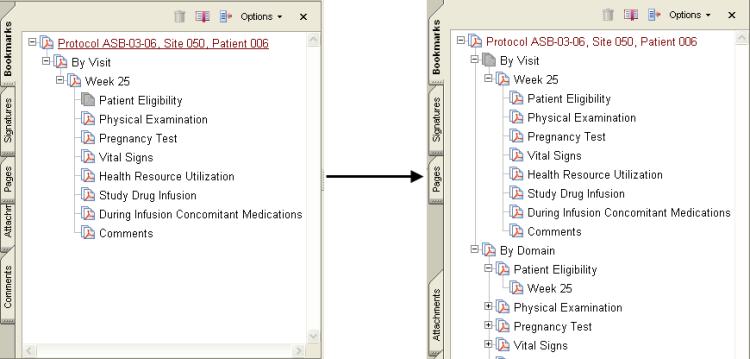
Example 1:
The following example illustrates the usage of the option Simple Reverse Order. The values, By Visit and By Domain, are used for the options Input Root Identifier and Output Root Identifier respectively :
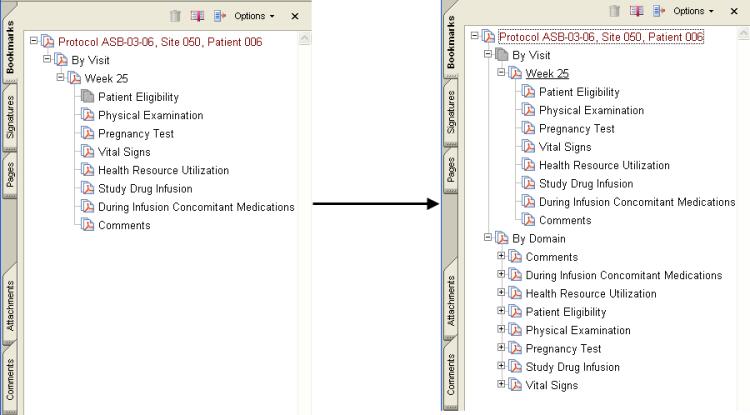
Example 2:
The following example illustrates the usage of the option Simple Reverse Order with the Sort domains in alphabetical order option selected. The values, By Visit and By Domain, are used for the options Input Root Identifier and Output Root Identifier respectively:
-
Select the option Create by Domain only using domains present in the list provided and select domain list using the browse button. If necessary, select the option Delete lowest bookmark only if the name of that bookmark is same as the domain name. Refer to the example 3 below.
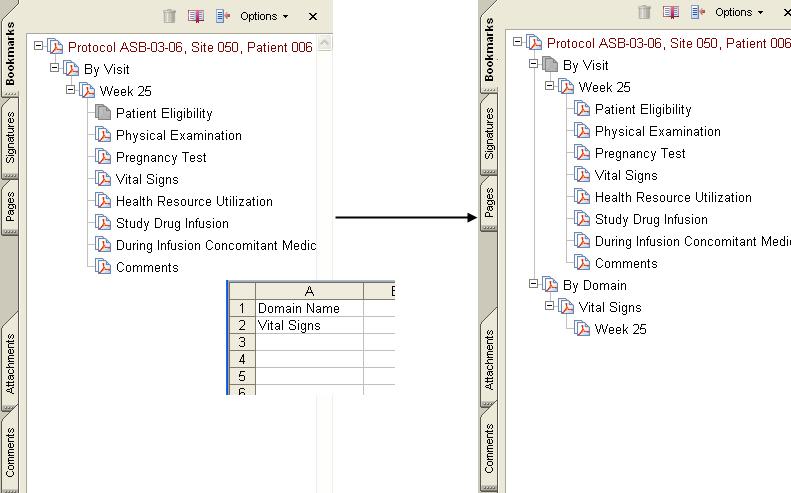
Example 3:
The following example illustrates the usage of the option Create By Domain only using domains present in the list provided. Notice the value Vital Signs used under Domain Name in the .CSV file:
- Select the option
Simple Reverse Order. To sort the bookmarks in alphabetical order, select
Sort domains in alphabetical order. Refer to the examples 1 and 2 below: