Sort Columns
Calyx RIM enables you to specify up to four levels of sorting for columns in tables.
The example of the Applications tab table below shows three levels, where the table is sorted by application name within family type within application code. The blue column headers indicate the columns with which you are sorting the table. The numbered arrows next to the column name show the sorting level hierarchy (1st, 2nd, 3rd), and whether the column values are in ascending or descending order.
- Sorting begins with the first column you choose.
- The second column you choose is sorted within the first column.
- The third column you choose is sorted within the second column.
- The fourth column you choose is sorted within the third column.
If you choose a fifth column to sort, the first column you chose is removed from the sort order and the primary sorting begins with the second column.
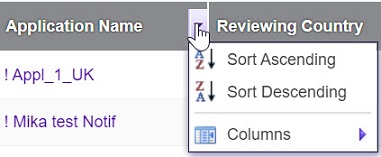
The sort order of the column values is indicated by the up or down direction of the arrow in the header. An up arrow indicates ascending order (from A–Z), and a down-pointing arrow indicates descending order (Z–A). You can change the sort order of a column by either clicking the column header to toggle the direction of the arrow, or by hovering over the column header and clicking the menu arrow to choose a sort order, as shown in the following image.
To remove the sorting on a table, click the
Clear Sort icon  at the bottom of the table. Most
Calyx RIM table views open with a default column already sorted, so you may want to clear the default sort first before specifying a custom sort.
at the bottom of the table. Most
Calyx RIM table views open with a default column already sorted, so you may want to clear the default sort first before specifying a custom sort.