
Folder Elements
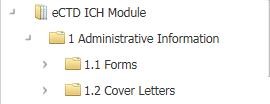
A folder element is the node beneath the root or another folder, and can contain other folders and leaf elements.
The root folder is represented by the icon  and the folder element is represented by
the icon
and the folder element is represented by
the icon  in the tree view.
Add a Folder
You can add folders to the assembly structure under an assembly root. To add a folder to an assembly:
- Right-click the assembly root or the element on the assembly
tree where you want to add a folder, and choose
Add Folder.
The folder is added to the assembly tree with the name New Folder and the Edit Folder page appears.
- Enter values for the attributes.
- Save.
Modify A Folder
You can modify the folder attributes in an assembly tree.
Before you modify the folder attributes, make sure that the DMS browse window is closed. Content for one pop-up window sometimes appears in another pop-up window. If this occurs, close the pop-up windows and try the operation again.
To modify a folder:
- On the assembly tree, click the folder you want to modify. The Edit Folder page appears.
- In the Edit Folder view, click
.jpg) .
. - Change attributes.
- Save.
Folder Attributes
You can use the field descriptions to enter attribute values while adding a folder.
The table lists all the fields that appear while adding a folder.
| Field | Description |
| Abbreviated Name | The short name for the folder. |
| Comments | The comments for the folder. |
| Creation Date | The date the folder was created. |
| Description | The description for the folder. |
| Field | Description |
| Division | Indicates if the folder is a major or minor division. |
| Due Date | The date all content within the folder is due. |
| Extension | The type of folder within the Assembly. Additional folder types open up additional attributes on the folder. Default = Default |
| Force New Volume | Indicates if a new volume should be created at this folder during volumize. Default = No |
| Keywords | The keywords for the folder. |
| Last Repository Retrieval Date | The last date a DMS Sync was run against this folder. |
| Leaf Id | A unique ID for the folder, generated by the system. |
| Lock Indicator | Indicates if the folder is locked. |
| Name | The name of the folder. Required |
| Number | The outline number for the folder. For eCTD submissions this is necessary for XML generation. |
| Output Folder | The folder name to be created in the output. This is used to override any automatically created eCTD folders, or where there is no folder to be created. Example: For a Study, a folder will be created. If the Assembly Type is set to eCTD, US eCTD or CN eCTD, this will be normalized during publishing. Default = blank. |
| Owner | The owner of the folder. Default = current user |
Folder Element Type Attributes
You can enter values for additional eCTD attributes in the following ICH eCTD M2-5 folders:
— 2.3.S Drug Substance - Substance, Manufacturer
— 2.3.P Drug Product - Product Name, Manufacturer, Dosage Form
— 2.7.3 Summary of Clinical Efficacy - Indication
— 3.2.S Drug Substance - Substance, Manufacturer
— 3.2.P Drug Product - Product Name, Manufacturer, Dosage Form — 3.2.P.4 Excipients - Excipient Name
— 3.2.A.1 Facilities and Equipment - Manufacturer, Substance, Dosage Form, Product Name
— 3.2.A.2 Adventitious Agents - Manufacturer, Substance, Dosage Form, Product Name — 5.3.5 Reports of Efficacy and Safety Studies - Indication
Folder Element Types
You can change the element type for a folder in an eCTD assembly.
This enables you to specify additional publishing attributes for study tagging files (STFs), clinical indications, and other types of data required by the eCTD specification and by regulatory agencies. These attributes are used to create the XML backbone for eCTD submissions.
Modify a Folder Element Type
You can make changes to the Folder Type. The changes you make to the attributes for an extended element in a previous sequence assembly do not affect the current sequence.
You must have the appropriate security privileges to modify a folder element type.
To change the folder type:
- On the assembly tree, select the folder you want to change.
- In the More list, click Change Type
 .
. - On the Modify Element Type dialog box, click the Extension arrow and choose a folder type.
- After you choose a folder type in the Extension list and click OK, attributes specific to the folder type you chose appear on the Folder Attributes page.
- To specify values for the attributes, click Edit.
Duplicate A Folder
You can create a new folder by duplicating an existing folder and then changing its attributes as needed for the new folder type.
Note: You must have the appropriate security privileges to duplicate folders.
To duplicate a folder:
- Right-click the folder you want to duplicate and choose
Duplicate.
The new folder is positioned as a sibling immediately below the folder you duplicated.
- Select the duplicated folder in the assembly and click Edit
.jpg) to edit attributes for the
duplicated folder. Automatically, each leaf element within the
duplicated folder is assigned the default Leaf Status value from
Data Administration. You can change the status, if
needed.
to edit attributes for the
duplicated folder. Automatically, each leaf element within the
duplicated folder is assigned the default Leaf Status value from
Data Administration. You can change the status, if
needed.
Lock Folders
Locking a folder prevents any changes from being made to the content of the folder. Before locking the folder, keep in mind the following:
— To unlock a locked folder, you must have License Modules > SPT (Submission Planning and Tracking) set to at least Write, and Functional Security > Review and Approval set to Yes in Security Administration. All child folders are also unlocked.
— The location of the locked folder in the assembly tree cannot be changed; that is, you cannot move the folder up or down, and you cannot promote or demote the folder.
— If you move the locked folder parent element, the folder moves with its parent.
— You cannot change elements in a locked folder.
— You cannot add elements to a locked folder.
— The locked folder and its contents cannot be duplicated directly or deleted.
— The locked folder parent element cannot be deleted.
— Structure locking an assembly will lock in place Folders, Leaf elements, documents, and special sheets. It will not lock Volumes or TOCs. Volumes have their own locking function, and TOCs cannot be locked.
— In the sequence view, when a folder and its contained elements are locked, the locked folder icon is not displayed, but the folder is shown as read-only.
Lock a Folder
You can lock the folder to prevent any changes from being made to its content.
To lock a folder:
- On the assembly tree, choose the folder you want to lock.
- On the action toolbar, click
.png) .
.
A message prompts you to confirm the lock.
- Click OK.
Unlock a Folder
You can unlock folders in an assembly tree from the working or publishing views, and enable users to modify the folders.
To unlock a locked folder:
- Click a link for the assembly that has the locked folder.
- Right-click the root and choose Expand All.
- Click the locked folder you want to unlock.
5. Click OK when you are prompted to confirm the unlock.
4.
Click

.
Note: When you unlock a parent folder, the first child of the last child folder of the parent folder is unlocked.
Delete a Folder
A folder and all of its contents can be deleted from an assembly tree.
Note: You must have the appropriate security privileges to delete folders.
To delete a folder:
- Right-click the folder you want to delete and choose Delete. A message prompts you to confirm the deletion.
- Click OK.
The folder and its contents are deleted.