
Prerequisites
Prerequisites for synchronizing the Working view or an Initial Assembly with the Submitted view:
— Changes must have been made in a Submitted view. Changes made in the Submitted view are indicated by the status Yes for the Updated Submitted Available attribute on the Assembly Attributes page. — The Working Assembly as well as the folders in an assembly must be unlocked.
To synchronize a current Working view or an initial assembly with updates of the Submitted view:
- In the Working View or an initial assembly, choose the root to synchronize the entire assembly.
- On the More menu, click Synchronize with the Submitted View.
- On the confirmation message, click OK.
The synchronization process starts. While the synchronization process is in progress, some assembly actions are unavailable.
- To view the status of the synchronization process, use the Job Requests feature.
When the synchronization process is complete, the status of the Updated Submitted Available attribute is set to No.
Note: Synchronization does not make any changes to APL. APL remains, irrespective of the changes made in parallel sequences.
Conflicting Operations Rules - Synchronization with Submitted View
The following rules are applied during synchronization with Submitted view to conflicting operations.
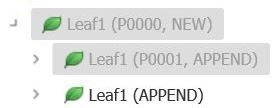
— If a leaf has Append status in the Planned Submission and Append status in the latest Submitted view then after synchronization the current Working View will have the following structure.
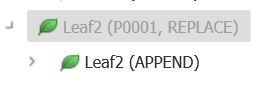
— If a leaf has Append status in the Planned Submission and Replace status in the latest Submitted View then after synchronization the current Working View will have the following structure.
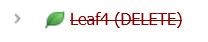
— If a leaf has Append status in the Planned Submission and the Delete/Withdrawn status in the latest Submitted view then after synchronization the current Working view will have the following structure.

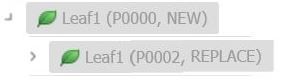
— If a leaf has Replace status in the Planned Submission and Append status in the latest Submitted view then after synchronization the current Working view will have the following structure.
— If a leaf has Replace status in the Planned Submission and Replace status in the latest Submitted view then after synchronization the current Working view will have the following structure.

— If a leaf has Replace status in the Planned Submission and Delete/Withdrawn status in the latest Submitted view then after synchronization the current Working view will have the following structure.

— If a leaf has Delete/Withdrawn status in the Planned Submission and Append status in the latest Submitted view then after synchronization the current Working view will have the following structure.
— If a leaf has Delete/Withdrawn status in the Planned Submission and Replace status in the latest Submitted view then after synchronization the current Working view will have the following structure.
.jpg)
— If a leaf has Delete/Withdrawn status in the Planned Submission and Delete/Withdrawn status in the latest Submitted view then after synchronization the leaf in current Working view will not be displayed (the leaf is deleted from the structure).
— Consider a submission with multiple Appends to a leaf. The tree structure will be as below.
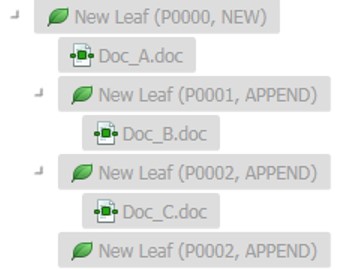
If we now apply Replace or Withdrawn operation to the initial leaf (P0000), the Replace or Withdrawn operation is applied to all the appended leaf from the last lifecycled sequence.
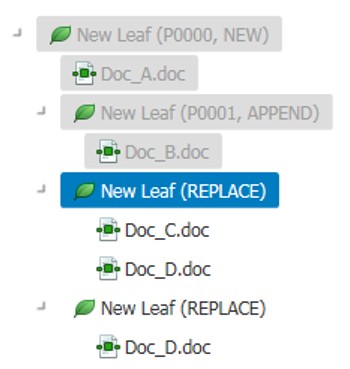
After synchronization, the documents are retained in different views as per the rules noted below:
— If final operation is Append, the documents from Planned submission are retained.
— If final operation is Replace, the documents from both the Planned Submission and the Submitted View are retained.
— If final operation is Withdrawn, the documents from the Submitted view are retained.
All Workflows added to nodes in the Working view are retained. If a leaf with assigned Workflow is re-targeted to several leaves from Submitted view, a Workflow is retained for the first resulting leaf only.
Note:
— If the operation is an Append/Withdraw, all the documents from all of the sequences appear under the resulting leaf.
— It is recommended that you avoid synchronization with Submitted view for submissions that have too many changes between Working and Submitted views, as it could result in unpredictable results. For example, if we have P0001 created from P0000 and it is in Working view, and if 10 assemblies are added to life cycle, P0001 will have to be synchronized with P0011.
— Synchronization with the Submitted View is not supported when the selected XML definitions are changed.
— Publishing Settings Library and US M1 Metadata Submitted View updates are not synchronized with the current Working View.
— Some conflicting operations, such as life cycle operations resulting in different leaf locations in cross-specification applications, cannot be resolved by the Synchronize with the Submitted View feature. The synchronization process skips the conflicting leafs and logs the details of the leaf name and ID in the Job Requests.
Parallel Life Cycle
You can use the View Parallel Lifecycle option to view a report of the concurrent changes of a leaf across planned sequences.
This report is available in the working view of a sequence assembly and an assembly plan.
View Parallel Life Cycle
Using the Advanced Assembly Filter feature, an assembly can be filtered to get a list of lifecycled leafs in parallel sequences. You can use the View Parallel Lifecycle feature to view a report of the concurrent changes of the lifecycled leafs across a planned submission.
To view the parallel life cycle of a leaf:
- In the Working View of a sequence assembly or an assembly plan, choose a leaf to view its parallel life cycle.
- Right-click on the leaf and select View Parallel Lifecycle.
The report is displayed in the Parallel Lifecycle Operations pane.
- To view the attributes of a leaf in the report, click the leaf name hyperlink. The leaf attributes are displayed on the Leaf Attributes page.