
Unlock Assemblies and Folders
Users cannot change the content of a locked assembly or folder. Administrators or the owner of the assembly can unlock it and enable users to change the assembly structure.
You can only unlock assemblies, templates, lifecycle assemblies, and folders from the working or publishing views. You cannot unlock an assembly from the sequence view.
An unlock can occur at two levels:
— At the root level, the you can unlock the entity and unlock all locked folders in the entity. — At the folder level, you must select the child folders to unlock.
Unlock an Assembly
Perform the following steps if you want to modify an assembly.
Administrators or the owner of an assembly can unlock an assembly and enable users to modify the assembly.
To unlock a locked assembly:
- Click a link for the locked assembly.
The Assembly Attributes page opens.
- Click
 .
. - Click OK when you are prompted to confirm the unlock.
Lock Sequence Assemblies
When you are ready to add a sequence assembly to lifecycle, you must lock it to prevent additional changes. Then you can add the sequence to lifecycle. This creates the lifecycle and makes the sequence assembly you used to create it the first finalized lifecycle assembly.
Once an assembly is locked, only an administrator can make changes and synchronize the assembly with the DMS. It is recommended, however, that you lock the binding of all documents used in the assembly, thus preventing binding changes should the assembly be unlocked and synchronized.
You can manually lock an assembly or you can use the Change Submittal Status wizard to mark the assembly as submitted. This locks the assembly automatically. The Change Submittal Status wizard enables you to update a submission status after a sequence assembly has been received by the regulatory agency. When you change the status, the submission is finalized and you can use it in subsequent submission lifecycle updates by adding it to the submitted view. In addition, the statuses of related entities (application, event, sequence, assembly) and key status attributes such as first submittal date are updated automatically.
Note: Only an administrator can unlock a locked assembly.
Manually Lock an Assembly
You can manually lock a sequence assembly to add it to a life cycle.
To manually lock a sequence assembly:
- Click a link for the sequence whose assembly you want to lock.
- Click the Assembly tab to open the Assembly Attributes page.
- Optionally, review the assembly tree and any of its attributes.
- Click the assembly root.
- Click
 on the action button
toolbar.
on the action button
toolbar.
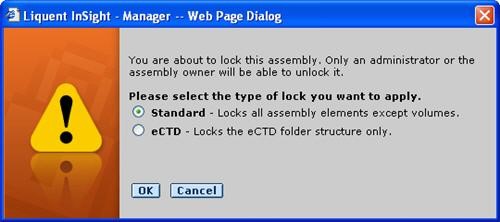
A message prompts you to select the lock type.
6.
Select
Standard
to lock the entire assembly.
Example
7.
Click
OK
.
— Read-Only Mode appears before Assembly Attributes.
— Lock Indicator is set to Yes.
— A lock appears on the root in the assembly tree.
— When you expand the assembly tree, the elements are grayed out to show they cannot be changed.
Note: Although the sequence assembly is locked, you can still change attributes for the assembly root.
8. You can now add the locked sequence assembly to life cycle.

Unlock a Folder
You can unlock folders in an assembly tree from the working or publishing views, and enable users to modify the folders.
To unlock a locked folder:
- Click a link for the assembly that has the locked folder.
- Right-click the root and choose Expand All.
- Click the locked folder you want to unlock.
5. Click OK when you are prompted to confirm the unlock.
4.
Click

.
Note: When you unlock a parent folder, the first child of the last child folder of the parent folder is unlocked.
Lock a Folder
You can lock the folder to prevent any changes from being made to its content.
To lock a folder:
- On the assembly tree, choose the folder you want to lock.
- On the action toolbar, click
.png) .
.
A message prompts you to confirm the lock.
- Click OK.
Modify Submitted Views for Imported eCTDs
After importing an eCTD into Ennov InSight , an administrator can unlock the submitted view for a lifecycle application to perform basic structural changes.
Such changes may be necessary due to the sorting performed by Ennov InSight 's eCTD importer. Also, you may want to re-order leaf elements in a given section to make subsequent working assemblies easier to manage. The changes you make will persist in subsequent working assemblies.
For modifying lifecycle applications, the conditions describe below exist.
Limited Access
— Only lifecycle administrators (individuals with administrator access to sequence assemblies and with lifecycle views rights) may unlock the submitted view.
— To unlock the submitted view, there cannot be any planned working sequence assemblies in the current application.
— The administrator must re-lock the submitted view when modifications are complete.
— When the submitted view is unlocked, a user (non-administrator) cannot create a working assembly or add to lifecycle.
— When the submitted view is locked, a user (non-administrator) receives a warning when attempting to create a working assembly or add to lifecycle.
Limited Capabilities
The functions described below are available in an unlocked submitted view (the locked submitted view continues to follow existing requirements and available functions, with the addition of a Lock/Unlock option on the root element of the assembly)
Root
— Refresh
— Expand
— View document list
— Export (More menu)
— Copy URL (More menu)
— Lock (More menu)
Folder
— Refresh
— Expand
— Add folder
— Move up
— Move down
— Promote
— Demote
— Delete (More menu, only empty folders may be deleted in an unlocked submitted view)
— Edit (More menu)
— Change type (More menu)
— Drag-and-drop is allowed Leaf Elements
— Refresh
— Expand
— View lifecycle history
— Promote
— Demote
— Move up
— Move down
— Edit (More menu; also available for reference leafs)
— Change type (More menu)
— View file (More menu)
— Drag-and-drop is allowed
Reference Leaf elements can be edited in the Unlocked Submitted View of a Sequence Assembly:
— To modify a Reference Leaf element in the unlocked submitted assembly plan view, in Security Administration you must have Entity Security > Submission Plans set to at least WRITE and Entity Security > Sequence Assemblies set to ADMIN.
— To modify a Reference Leaf element in the unlocked submitted assembly view, in Security Administration you must have Application Country Rights set to at least WRITE and Entity Security > Sequence Assemblies set to
ADMIN.
Other Elements with which Documents and Placeholders Can Be Associated
— No other right-click or More menu functions are available.
— No publishing elements may be viewed in the submitted view.
— Drag-and-drop functionality is disabled.
Additional Information
For administrators, multi-select drag-and-drop is permitted on leaf elements. However, as a user (non-administrator):
— You can only create and delete folders. Leaf elements and documents may not be created or deleted.
— You cannot assign documents. Drag-and-drop functionality is disabled and auto leaf creation is not permitted.
— You can only use drag-and-drop to re-order existing elements in an assembly.