
DMS Search
Use the Search tab on the DMS Browse window to search any of the following repositories for which you have access permission:
— Documentum — Veeva
Warning: When searching against a Veeva repository using DMS Search in Ennov InSight , an error may appear about exceeding the API calls limit. By default, Veeva Vault has an API burst limit of 2,000 API calls within a 5-minute period, and 100,000 API calls daily. These limits help to prevent runaway script scenarios (e.g. where the logic creates an infinite loop that continuously calls the Vault APIs). To request an increase to this limit, please contact Veeva Support .
The available DMS Search options depend on the type of DMS repository you are searching. Different options are available for different DMS repositories. For example, the Advanced Query functionality is available only for Documentum and Veeva repositories.
By default, a DMS search returns only the first 50 objects found. If your company wishes to modify the default setting, please contact Technical Support.
| Field | Description |
|
DMS Repository |
Select the DMS repository to search. Required. |
| Repository | This field appears on the search tab after you select a DMS Repository. Select the name of the repository to search. Required. |
| Document Type |
This field appears on the search tab after you select a Repository. Select the document type to search for in the repository. Required. |
|
Note: The Document Type field in the Ennov InSight DMS Search function is not equal to the Document Type term in Veeva. Ennov InSight DMS Search treats the Veeva Document Type as a top level folder in the DMS folders/files tree. |
|
| Search Folder | Click the Browse option to choose a folder in the repository to search. In addition to the required fields, you must choose a Search Folder or Advanced Query to complete a search. |
|
Exclude Assigned Documents |
Select this option to exclude assigned documents from the search. |
|
Case Sensitive |
Select this option to make the search case sensitive according to your filter criteria. |
| Field | Description |
| Advanced Query |
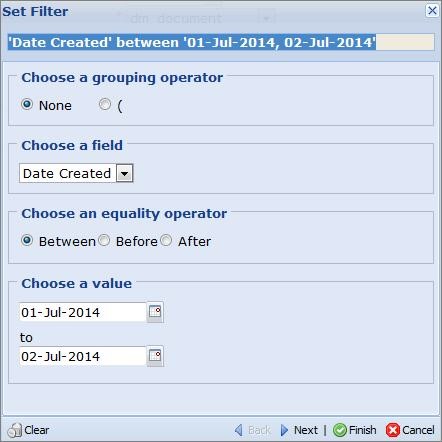
Advanced Query is available only for Documentum and Veeva repositories. Click Build Query to open the Set Filter window and add operators to refine your search criteria. In addition to the required fields, you must choose a Search Folder or Advanced Query to complete a search. — Choose a grouping operator. Choose None, or choose to group multiple filter criteria within parentheses. — Choose a field. Select a field from the keywords list. This list, except for Path, corresponds to the columns in the grid view. If your company configures custom fields for the grid view, those fields also are available. — Choose an equality operator. The equality operators are dynamic and vary according to the selected field. — Choose a value. Enter text, or choose dates, if a date field was selected, to specify the equality operator. Example: To find all documents created on one specific date, in this example, July 1, 2014:
The system retains the last search criteria specified in Advanced Query until those criteria are reset, regardless of whether the DMS Browse/Search window is closed/ reopened, the user logs off from , or the browser window is closed. |
| Clear | Clears and closes the Set Filter window. |
| Back | To return to the previous criteria in your search filter, click Back. |
| Next | To add another item to your search filter, click Next. |
| Finish | When your search filter is completed, click Finish. |
| Cancel | To cancel your last selection while creating the search filter, click Cancel. |
| Reset | To remove all search criteria and start over, click Reset. |
| Search | To initiate the search using your selected criteria, click Search. The results appear in the DMS Search Results grid view. |
DMS Search Examples
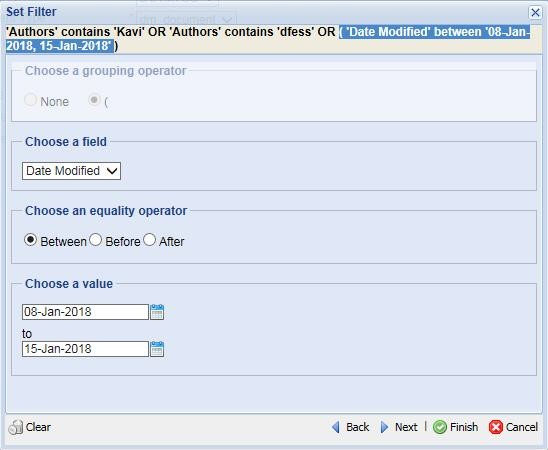
The following images show two different Advanced Query filter examples. The first image shows the filter for searching the repository for documents modified on a single, specific date. The second image shows the filter for searching the repository for documents modified by either of two authors within a date range.
Advanced Query – Set Filter – single date
Advanced Query – Set Filter – either of two authors within a date range
DMS Search Results - Grid View
The DMS Search Results grid view displays the documents for the node selected in the tree view.
When a selected node or folder consists of child folders and documents, then only the documents assigned to selected folder appear in the grid view.
The grid view displays additional attributes for the node selected in the tree view. Folders do not appear in the grid view.
If a repository or folder is selected:
— All documents in that repository or folder appear in the grid view.
— All versions of each document are displayed.
— All versions of each virtual documents are displayed.
If a document or virtual document is selected, all versions of the documents are displayed.
If a version of a document or virtual document is selected, all versions of that document are displayed. The selected version appears first in the grid view.
If multiple nodes are selected in the tree view, the grid view displays only the last node selected.