Create an Okta Application
You must have an Okta account to create an Okta application. If you do not already have one, proceed to the
Okta Developer Sign Up site, and create an account.
To create an Okta application:
-
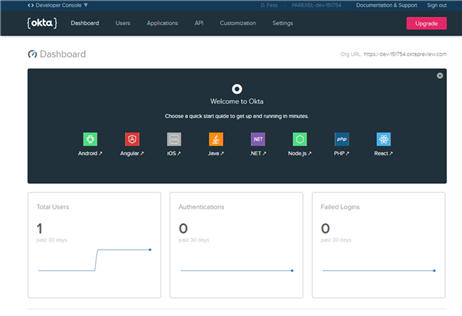
Go to the Okta developers site using the URL provided when you created your account.
https://dev-xxxxxx.oktapreview.comThe Developer's Console appears.
-
In the top left of the menu bar, select
Classic UI.
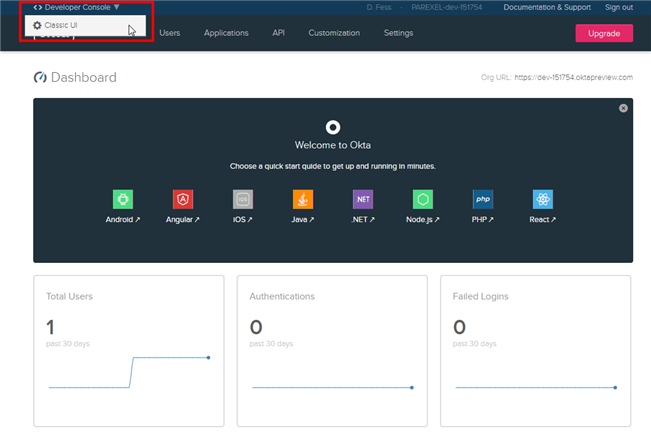
The Classic UI interface appears.
-
In the Okta menu bar, click
Applications.
-
On the
Applications page, click
Add Application (
).
The Add Application page appears. -
On the
Add Application page, click
Create New App (

).
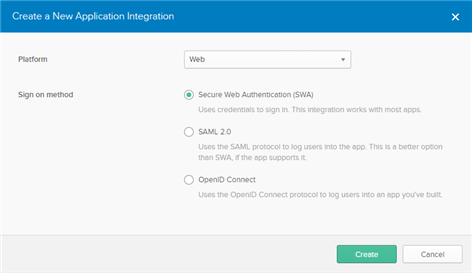
The Create a New Application Integration window appears.
-
Select the following settings, and click
Create.
Field Name Setting Platform Web Sign on method OpenID Connect The Create OpenID Connect Integration page appears.
-
On the
Create OpenID Connect Integration page, enter the following information and
Save.
Field Name Setting Application name Enter a name for the application. Example: My Okta Application
Login redirect URIs https://<IP address or hostname of server with InSight>:<port>/insight/openId/login Logout redirect URIs https://<IP address or hostname of server with InSight>:<port>/insight Your application page will appear. - On the General tab of your application, copy the values of the Client ID and Client secret fields, and paste them in a text file.
- On the Sign On tab of your application, copy the value of the Issuer field (under the OpenID Connect ID Token section), and paste it into a text file.
- On the Assignments tab of your application, click Assign > Assign to People.
- In the Assign <Your Application Name> to People window, select the people you want assigned to your application by clicking the Assign button next to their name.
- Verify that the information displayed for each user is correct, click Save and Go Back, and then Done.
-
Perform the instructions at the following link:
create an API token.
Remember to record the value of the API token, as this will be used later in the insight.var file.