Navigation Pane
The Navigation Pane provides the ability to navigate to Calyx RIM entities. You can choose the Entity view, Analytics view, or Tree view by clicking the appropriate icon on the Navigation pane:
-
Select Entity List icon -

- Select Analytics Tree icon -

- Select Trees icon -

List view provides links to:
- My Home
- Product Families
- Registrations
- Applications
- Events
- Full Product Presentations
- Sequences
- Submission Plans
- Standalone Assemblies
- Assembly Templates
- Publishing Templates
- Submitted Views
- Approved Views
- My Tasks
- Projects
- Changes
- Comparators
- Registration Attachments
- System Alerts
- Activities
Tree view provides the ability to view the Product Family tree or the Countries tree by using the Select Trees option.
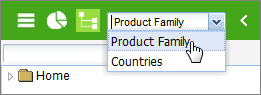
Navigation trees provide an easy way to locate specific information in the system:
- Family Tree - Lists product families that are available to you in the system.
- Country Tree - Lists countries that are associated with the available product families.
- Analytics Tree - Provides access to Calyx RIM for Analytics reports.
The Family Tree and the Country Tree are hierarchical and consist of nodes with dependent subnodes.
The Filter Criteria (Search Option) enables you to see entities in the Family Tree and Country Tree that contain the filter criteria entered.
To clarify the nature of the node dependencies, the terms parent,sibling, and child may be used in this documentation. As with the generational relationships from which these terms were taken, the following is true for these terms:
- Parent indicates a higher-level node or attribute that has related subnodes.
- Child nodes appear below and slightly to the right of the parent node indicating a relationship.
- Sibling nodes are equal in ranking, sharing the same parent node.
- A child node can be a parent node for related subnodes.
You can click the arrow next to any node to expand or collapse areas of the navigation tree. Click any node in the tree to view the attributes page for the entity represented by the selected node. The details appear in the pane to the right of the navigation tree.
You can expand child node by clicking right mouse button on the needed Product Family or Country entity and select Expand Range option.
To view the full width of the navigation tree or minimize its space on the screen, you can expand or reduce the size of the navigation tree pane. Hovering your pointer over the border between panes changes your cursor, indicating that you can press your left mouse button and drag the pane to the appropriate size.