An external link is a hyperlink that targets a page in another PDF document.
Use the
Link Stamper to reference a page in another document.
To target a page:
-
Open
Link Stamper and then click-and-drag the pointer to create a bounding box around the text that will include the hyperlink.
-
In the
Link Stamper dialog box, select
External and do the following:
-
In the
Link To drop-down box, specify the target PDF document by clicking the
Browse button to locate the target document.
If the target document resides in a DMS repository, you will be prompted to log on.
-
To select a new target document, next to
Select document to link to, click
 and then locate and select a document in the
Select File dialog:
and then locate and select a document in the
Select File dialog: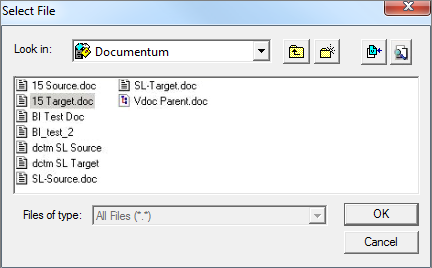
-
After selecting a file, if there are more than one version of the document in the DMS, click the
Select Version icon:

-
Choose the version and click
OK.
Note: Although the
Link To box displays the full path to the target documents, the links are created with relative paths.
-
In the
PDF Page # box, enter the target page in the target PDF document. If necessary, you can click
Open target to view the target PDF document and locate the target page.
-
Under
Appearance, specify the attributes for the magnification, text color, and bounding box.
-
Click the
Link button to create an external hyperlink with the attributes you defined.
-
Repeat these steps for each external link you need to create.
The
Link Stamper dialog box preserves the settings from the previously created hyperlink so that you can create multiple links with minimal or no changes.
-
To save your hyperlinks to the PDF, click
in Acrobat.
