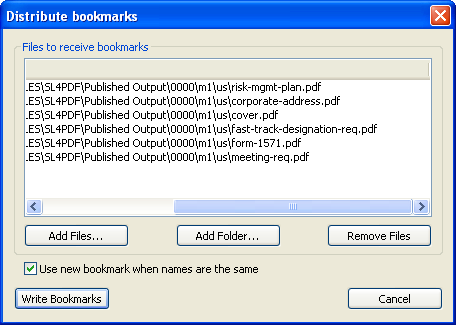
Use the
Distribute bookmarks dialog to select the destination files or folders for bookmarks. The Distribute bookmarks functionality is for use with PDF files stored in a file system.
Files included in the
Distribute bookmarks dialog must be unique. A PDF file must not be added twice.
-
In Acrobat, open the PDF file that contains the bookmarks to be distributed and choose
.
-
In the
Link and Bookmark Manager dialog, select
Bookmarks and click
Reload.
-
In the
Link and Bookmark Manager dialog, select bookmarks for distribution. Use the
Shift key or
Ctrl key to select contiguous or non-contiguous bookmarks in the
Link and Bookmark Manager dialog.
-
Click
Distribute, and in the
Distribute bookmarks dialog do the following:
-
Click
Add Files to browse your system and select PDF files.
The selected PDF files appear in the
Files to receive bookmarks list of the
Distribute bookmarks dialog.
-
Click
Add Folder to browse your system and select folders.
The PDF files from the selected folders appear in the
Files to receive bookmarks list of the
Distribute bookmarks dialog.
-
To remove the files from the list in the
Distribute Bookmarks dialog, highlight one or more PDF files in the list and click
Remove Files.
-
To update/overwrite an existing bookmark in a receiving file when a distributed bookmark has the same name, select the Use new bookmark when names are the same option.
If this option is not selected, the existing bookmarks in the receiving files with the same name will not be not updated or overwritten by the distributed bookmark.
-
To merge the selected bookmarks into the receiving files, click
Write Bookmarks.
- A progress bar shows that the process is running.
- The bookmarks are distributed to the selected files and the
Distribute Bookmarks dialog closes.
-
Linking plug-in (PDF) prepends the bookmarks at the top of the bookmark tree structure in the receiving PDF files.
- When the bookmark distribution is completed, click
OK in the confirmation dialog.