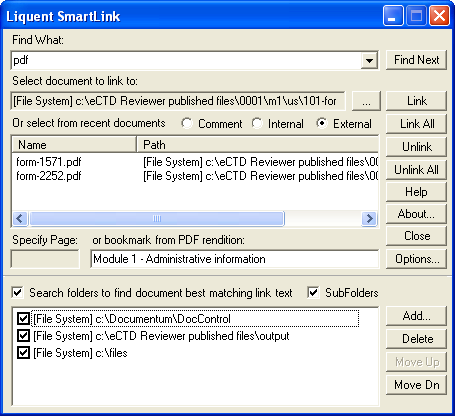
You can specify folders where
SmartLink for Word will search for files.
SmartLink for Word searches the file names for a match with the text in the Find What box. If a file name is found that closely resembles or matches the search text, that file is added to the list. You can also search subfolders.
-
In
SmartLink for Word, click
Options and select
Show Search Folders.
-
Do one or both of the following:
- To select folders to search, select
Search folders to find document best matching link.
- To select subfolders to search, select
SubFolders.
-
To add a folder to the search, click
Add.
The
Select Location dialog opens.
-
In the
Select Location dialog, click in the
Look in field, select a folder in your system, and then click
OK. Repeat this step to select more folders.
- For each search, you can choose which folders to include in the search by selecting or clearing the check box for each folder.
- Use the
Move Up and
Move Dn (down) buttons to arrange the folders in a preferred order. Highlight a folder and click
Move Up or
Move Dn to relocate it in the list.
- To remove a folder from the list, hightlight the folder and click
Delete.
The selected folders appear at the bottom of the
SmartLink window.
-
When you click
Find Next, SmartLink will search all of the selected folders for text matching what you entered in the
Find What field.