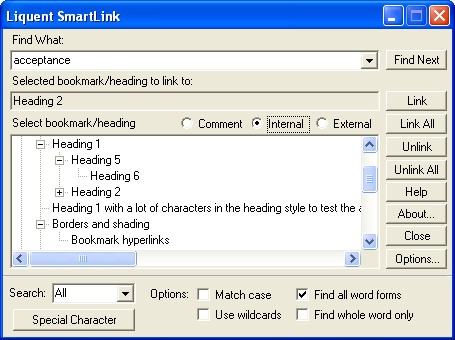
Using the SmartLink for Word Dialog
When Linking add-in (Word) is installed, it appears on your Microsoft Word toolbar as an add-in application. You can use Linking add-in (Word) to add, modify, or insert comments referencing hyperlinks in a document.
Use the column of controls on the right side of the SmartLink dialog for searching and hyperlinking text in your documents.
- Link - Replace the selected text with a hyperlink.
- Link All - Replace all occurrences of the found text with hyperlinks.
- Unlink - Remove the hyperlink from the selected text.
- Unlink All - Remove all hyperlinks that include the found text.
- Help - Open https://help.liquent.com to view SmartLink documentation in your Web browser.
- About - Information about your SmartLink version.
- Close - Close the SmartLink window.
- Options - Select advanced options in SmartLink.