
Document Elements
Documents are placed under leaf elements in an assembly tree.
The features related to document elements include automatic leaf creation, document place holders, document binding, and reference locations.
You can perform the following actions:
— Automatic leaf creation - You can determine if leaf elements are created automatically when you drag documents from the DMS browse window into an Ennov InSight folder or root.
— Document placeholders - You can create document placeholders in an assembly where you expect to later assign documents.
— Document binding - When you create an assembly, you choose a default document binding. The documents you assign to the assembly assume the specified document binding.
— Reference locations - A reference location enables you to open an assembly from within a document management system (DMS) or repository.
Document Attributes
The attributes and descriptions help you to enter the appropriate attribute values when you create documents.
The table list all the attribute values that are available to you when you create a document.
| Attribute | Description |
| Abbreviated Name | Short name for the document. |
| Assignment Status | Indicates whether the document is available in the DMS. You cannot change this value. |
| Attribute | Description |
| Bound Version |
Version of the document bound to the assembly. You cannot change this value. If a version of the document in the DMS supersedes the bound version, Newer Version Available is displayed. |
| Category | Descriptive information about the document. |
| Comments | Exceptions or clarifications about the document. |
| Content Type | Type of content in the document. |
| Copied From | If applicable, indicates the origin location of the copied document. |
| Default Binding Rule |
Set Default Document Binding: — Bind to Label binds the document to the label you choose — Bind to Status binds the document to the status you choose — Bind to Version binds the document to the version number you enter |
| Note: For Veeva documents, binding to a label is supported only when the label is set to CURRENT. Veeva does not use labels. When the label is set to CURRENT, Veeva displays the latest version in the tree. | |
| Description | Text that describes the document. |
| Document Modified Date | When the document was last modified. |
| Document Type | DMS document type. You cannot change this value. |
| Due Date | Date document is due. |
| Extraction Exists | Indicates whether or not extractions exist for the document. |
| Has Relations | Indicates whether or not the document has any relations. |
|
Include in Page Numbering |
Include page numbering on document. |
| Keywords | Words you can use to search for the document. |
| Last Rendered | Displays the last known rendition date. |
| Last Repository Data Retrieval | Indicates the last time the document was synchronized with the DMS. You cannot change this value. |
| Latest Version | Current version of the document. You cannot change this value. |
| Name | Name of the document. |
| Attribute | Description |
| Number | Number to use with publishing tools that require section numbering. |
| Number of Pages | Displays the number of pages in the document. |
| Other | Information you want to save about the document. |
| Output Channel | Available publication output (electronic, paper). |
| Overlay Setting | Choose the overlay to apply to the document. |
| Owner | Person responsible for the document. |
| Page Range From | Define the start of the range of pages within the document to be used in the assembly. |
| Page Range To | Define the end of the range of pages within the document to be used in the assembly. |
| PDF Exists | Indicates whether a PDF rendition exists for the document. You cannot change this value. |
| Planned Number of Pages |
This enables you to indicate the number of pages you are planning to include in the document; may be useful if you do not yet have a finalized document. For documents in native file leafs: Planned number of pages is always used, even if the document has been extracted at some point and Extraction Exists = YES, and Number of Pages has been extracted. If Planned Number of Pages is not set, one page is assumed. |
| Rendition Identifier | Choose the Rendition Identifier to use for the document. |
| Review Status | Text about the status of the document review process. |
| Source Document | Name of the source document. You cannot change this value. |
| Source Location | Indicates where the source document is located in the DMS or file system. You cannot change this value. |
| Title | Title that helps you identify the document. |
Document Placeholders
You can create document placeholders in an assembly where you expect to assign documents at a later time. A document placeholder has an assignment status of Unassigned. This status changes when you assign a document to the placeholder.
Document Binding
When you create an assembly, you choose a default document binding. The documents you assign to the assembly assume the specified document binding.
For example, if you set your document binding to a status of approved, Ennov InSight clearly indicates when the assigned documents are in or out of compliance with that rule.
Keep in mind the following about document binding:
— When you apply a document binding to all children, it is not applied to child documents that reference a branched version and that are set to 'Bind to Version'. In this case, after you navigate through any messages, the selected binding is applied to documents up to, but not including, the document that references the branched version. You can apply the version binding to documents individually, or you can select a more granular range that does not include the branched document versions.
— When you create an assembly from a virtual document or when you assign a virtual document to an assembly, no warning is displayed if the virtual document contains binding rules that are not defined in Ennov InSight by the administrator.
— Including the same document in an assembly twice when one of the documents is bound to a non-existent status (such as Approved) produces the inclusion of this document as a bound document in an exported virtual document.
— Binding cannot be removed after it is applied. However, it can be modified by using the Apply Binding to All Children option.
— Binding can be applied to DMS documents only, and does not apply to secure file system documents.
— Your options for applying binding rules are controlled by the configuration of Ennov InSight Data Administration, your DMS, and your permissions in the system.
Modify Document Binding Rules for a Document Range
You can change the binding rule for all documents in the root, a folder, or a leaf.
When you change the binding rule for a folder or a leaf, the binding rule for elements outside the folder or leaf remain unchanged. The new rule affects only the contents of the folder or leaf.
When you add any elements to the assembly tree, after you change the binding rule for the root, a folder, or a leaf use the default document binding rules set for the assembly.
You can also lock the binding rule to the current content so that the same document is referenced regardless of later versions that may become available. For example, if the binding rule for a document is set to Current and the current document version is 3.0, locking the binding will make the reference to version 3.0 permanent. Even if later versions of the document become available, the assembly will reference version 3.0.
Apply Binding to All Children
Use the Apply Binding to All Children option to apply or modify binding rules for assembly elements in a standalone assembly, a sequence assembly that is not life cycle, an unfinalized life cycle assembly, or an assembly template.
To apply or modify binding rules:
- On the assembly tree, select the assembly root, folder, or
leaf.
The binding rule you apply or modify will apply to the selected element and all its child elements.
- On the More menu, choose Apply Binding to All Children
 .
. - On the Apply Binding to All Children window, select a
Rendition Identifier.
The selected Rendition Identifier will apply to the selected assembly element and all child elements.
- Choose the Binding Rule that will apply to the selected
assembly element and all child elements and click OK.
Option Action Bind to Label Select the option to provide a dynamic list of options for the binding rule after choosing the appropriate Label. Bind to Status Select the option to provide a dynamic list of options for the binding rule after choosing the appropriate Status. Bind to Version Select the option to provide a dynamic list of options for the binding rule after choosing the appropriate Version. Lock Binding Select the option to provide a dynamic list of options for the binding rule. - A message appears, warning that you are about to change the binding for all documents under the selected element and that the binding action cannot be undone. To complete the binding action, click OK. To quit the binding action, click Cancel.
Lock Binding
Lock Binding is an option of the Apply Binding to All Children function.
When you select Lock Binding from the Binding Rule options, a repository property retrieval is performed for each Placeholder or Assigned Document within the range and their mapped or calculated properties (including Assignment Status) are updated.
Bindings are changed on all Placeholders and Assigned Documents that:
— Are within the selected element or Root, except for Placeholders and Assigned Documents descended from a Standard locked Folder or Root.
— Have a binding option of Bind to Label or Bind to Status. Those set to Bind to Version are already locked and are not affected.
— Have an object that exists within a DMS (Documentum or Veeva) that fulfills the binding option and its value. If no object meets the current binding criteria, a version number cannot be determined and binding on these elements cannot be locked.
For Documentum, branched versions are not supported so bindings are not changed on any branched Assigned Document version.
Reference Locations
You can use reference locations to open an assembly from Ennov InSight within a document management system (DMS) or repository.
The reference location is an HTML file that contains all the assembly attributes and a link that enables you to open the assembly automatically. When you click the reference location in the DMS, it opens a browse window with the attributes of the assembly, including a link to the assembly. Clicking this link takes you to the Ennov InSight login page. After you enter your login information, Ennov InSight opens the assembly.
The reference location name is the name you assign to the reference location.
Keep in mind the following:
— Ennov InSight maintains only one reference location for an assembly version. If a reference location exists in Documentum or the secure file system and it is moved or renamed, the original reference location is not deleted. Instead, another reference location is created for the same assembly version.
— You can create a reference location when the assembly is created by editing the assembly properties. Once an assembly exists, you must use the Set Reference Location action button to change it.
— When a reference location is created from the current active view, launching the reference location takes you to the first sequence assembly in the life cycle. From there, you have to switch to the current active view.
— Ennov InSight References to DMS elements can go to documents only; they cannot reference a compound document, virtual document, or link.
— For an assembly with a reference location defined in Documentum, to avoid having multiple versions of the assembly showing as Current, you must not change the reference location for any of the assembly versions to a different directory in Documentum.
Assign Documents
When you add an assigned document to the assembly tree, you create a link from the assembly tree to the document in the repository or secure file system.
This link associates the document with the assembly.
You can add document assignments in the following ways:
— Assign a document to a placeholder
— Assign a document as a child of an element
— Add a virtual document to the assembly tree
— Replace an assigned document with a related document
— Add an entire file/folder structure to the assembly tree
— Adding a Veeva binder, classification folder, or section to the assembly tree
You can perform the drag-and-drop function with documents from the repository browse window only. You cannot drag-and-drop documents from Windows Explorer. To access a specific secure file system from Ennov InSight , it must be mapped by an administrator and accessed from the DMS Browse window as a file/folder repository.
DMS Browse
The DMS Browse function displays a tree structure used to access documents in the selected document management system (DMS).
You can use the tree from the following places in :
| Location | DMSs with Accessible Document |
| Assigning documents | All |
| Location | DMSs with Accessible Document |
| Attachment Values in Data Administration | All except Veeva |
| Auxilary Output Location | All except Veeva |
| Bulk eCTD Import | All except Veeva |
| Create Assembly or Create Assembly Template - from an assembly file | All |
| Create Assembly or Create Assembly Template - from a virtual document | All except Veeva |
| Electronic Output Location - on the Create Assembly, Edit Assembly Attributes, and Publish Request pages | All except Veeva |
| Export Assembly - to Excel, Virtual Document, or Assembly File | All except Veeva |
| Export Published Output | All except Veeva |
| Import eCTD | All except Veeva |
| Paper Output Location - on the Create Assembly, Edit Assembly Attributes, and Publish Request pages | All except Veeva |
| PDS Label | All |
| Publishing Settings Browse - Preview Location and Process Rendition Location | All except Veeva |
| Reference Location - on the Create Assembly page | All except Veeva |
| Set Reference Location | All except Veeva |
| XEVMPD Acknowledgement wizard | All except Veeva |
| XEVMPD Submission wizard | All except Veeva |
Where the DMS Browse function is available, clicking the Browse button opens the DMS Browse window. The DMS Browse window displays the tree structure used to access documents in the DMS that you select.
Choosing any of the following in the tree view displays additional information about the selected item in the grid view to the right of the tree:
— Folder
— Document
— Virtual document
— Veeva binder
— Veeva section
For a description of the grid view, see DMS Search Results – Grid View.
The tree view displays all of the configured repositories that the logged on user has permission to access. User access to repositories is configured in Technical Administration.
DMS Browse Icons - Tree View
The DMS tree is used to access documents in document management systems (DMSs). In the DMS Browse tree view, different icons are used for different types of nodes:
| Icon | Node Type |

|
Documentum repository |

|
Documentum |
.jpg)
|
Standard document |

|
Documentum virtual document |

|
File system |
.jpg)
|
File system folder |

|
Server |

|
Secure file system |

|
Veeva Vault |

|
Veeva binder |

|
Veeva type, subtype, or classification |

|
Veeva section |
Use The Tree
Expand the tree to view available documents.
Clicking the arrow icon next to a node will:
— Expand the node by one level if the selected node was collapsed
— Collapse the selected and all nodes under it if the selected node was expanded
A document displayed in the tree view is the:
— CURRENT document, for Documentum
— Latest version of the document, for any DMS except Documentum
Expanding the document node displays all available versions of the document.
A virtual document displayed in the tree view is the CURRENT version and not the latest version. Expanding the virtual document or binder node displays the content of the virtual document or binder, not all available versions.
DMS Browse - Select Multiple Rows In Tree View: Contiguous Nodes
You can select the multiple nodes in the DMS Browse tree view, contiguously, using the SHIFT keys. Following are the multiple nodes in the DMS Browse tree view:
— Folders
— Documents
— Virtual documents
— Veeva placeholders, binders, classifications, and sections
To select contiguous nodes:
- Click the first entry of the group of nodes that you want to
select.
Select the name of the node, not the icon.
- Press and hold the Shift key on your keyboard.
- Click the last entry that you want to select.
All of the nodes in your selected group appear highlighted.
DMS Browse - Select Multiple Rows In Tree View: Non-Contiguous Nodes
You can select the multiple nodes in the DMS Browse tree view, non-contiguous, using the CTRL keys. Following are the multiple nodes in the DMS Browse tree view: — Folders
— Documents
— Virtual documents
— Veeva placeholders, binders, classifications, and sections
To select non-contiguous nodes:
- Press and hold the Ctrl key on your keyboard.
- Click each node that you want to select.
The nodes that you selected appear highlighted, although the group is not contiguous.
- You can now drag-and-drop the nodes, or click OK to assign them.
DMS Browse - Tree View of a Veeva Repository
In DMS Browse, the tree for a Veeva repository has the following structure. Each node in this structure can contain one or more nodes of each type shown. Note the following:
— The tree shows documents, placeholders, and binders that you have permission to see. — The tree does not show deactivated types, subtypes, and classifications.
— A binder can contain other binders.
— A section can contain other sections.
— A document, placeholder, or binder for which no classification is specified is at the same level as a subtype.
— A document, placeholder, or binder for which no subtype is specified is at the same level as a type.
— You can assign the following to assemblies: documents, placeholders, binders, classifications, and sections.
|
> Veeva Vault [server level} > Vault [repository label defined in Technical Administration] > type > subtype > classification > document > placeholder > binder > document > placeholder > binder ... > section > document > placeholder > binder ... > section ... > section ... > subtype > document > placeholder > binder ... > type > document > placeholder > binder ... |
The following is an example of part of a DMS Browse tree for a Veeva repository:
> Veeva Vault [server level]
> Vault 1 [vault]
> Clinical [type]
> Trial Management [subtype]
> Data Monitoring Committee classification]
> US binder [binder]
> Administrative Information [section]
|
> Forms [section] > Initial Request.doc [document] > ... |
DMS Browse - Grid View
The DMS Browse grid view displays different columns by default, depending on which repository type is accessed.
The following attributes are configured to display, or are available to display, as columns within the grid view for the specified DMS. Additional attributes can be configured using the XML overrides.
| DMS | Default Column Attributes | Optional Column Attributes |
| Documentum |
— Name — Title — Date Modified — Version — Keywords — Path |
— Subject — Date Created — Authors — Status — Document ID |
| Filesystem and Secure Filesystem |
— Name — Document Modified Date |
— Size — Absolute Path — Canonical Path — File Parent — File Path |
| Veeva Vault |
— Name — Title — Version — Last Modified Date — Created By — Product — Country |
— Status — Created Date — Last Modified By — Document Number — Type — Subtype — Classification |
DMS Browse - Modify Grid View Columns
You can add or remove columns in the grid view using the Columns list.
To modify the columns in the grid view:
- Open the Columns list by clicking the arrow on any column heading.
- Point to Columns and then select or clear the available column options.
- The selected columns appear in your DMS Search Results grid view.
| Option | Action |
| You can sort any column in ascending or descending order: | Click the sort arrow on the column heading. You can restore the grid view to the default sort by clicking Reset Sort at the bottom of the grid view. |
| DMS Search Results: | The DMS Search Results can display multiple pages of data in the grid view, but you cannot select items across multiple pages. |
| DMS Search Results: | You can export the DMS Search Results from the grid view as a spreadsheet by clicking Export to Excel at the bottom of the grid view. |
DMS Browse - Documents Tab
DMS Browse - Documents Tab comes with two different options to complete your selection process.
The DMS Browse Documents tab consists of two panes: Browse Documents and Browse Recently Selected. Each pane can be expanded to show their respective lists and perform certain actions.
Preview Documents
You can preview a document selected in either the tree view or the grid view by clicking Preview (located below the tree view).
The DMS Browse Documents tab consists of two panes: Browse Documents and Browse Recently Selected.
If you select multiple documents in the grid view and click Preview, the document selected first will be previewed. If multiple documents are selected in the tree view, the last document selected will be previewed.
To preview a virtual document, the selected virtual document must have content.
Browse Selected Documents
This view helps you to keep track of the documents, virtual documents, Veeva placeholders, and Veeva binders that you have selected as you browse a DMS and choose entries to add to an assembly.
When you are assigning documents in an assembly, the Browse Recently Selected pane is available on the Documents tab of the Browse window.
The Browse Recently Selected pane automatically lists all documents, virtual documents, Veeva placeholders, and Veeva binders that you select in the grid view, with the most recently selected added to the bottom of the list. To remove an entry from the Browse Recently Selected pane, select the root folder, and then clear the check box of the entry in the grid view.
The Browse Recently Selected list is expandable and collapsible at the root folder and at nodes for virtual documents and Veeva binders. The expanded view enables you to see all versions of a selected entry:
— To view an entry in the Browse Recently Selected pane, select the entry in the list and click Preview. The entry opens in the appropriate application for viewing.
— To add entries from the list of recently selected entries to an assembly, select the check box next to each entry that you want to add and click OK.
— To quit the DMS Search without assigning any of the recently selected entries to the assembly, click Close.
DMS Search
Use the Search tab on the DMS Browse window to search any of the following repositories for which you have access permission:
— Documentum
— Veeva
Warning: When searching against a Veeva repository using DMS Search in Ennov InSight , an error may appear about exceeding the API calls limit. By default, Veeva Vault has an API burst limit of 2,000 API calls within a 5-minute period, and 100,000 API calls daily. These limits help to prevent runaway script scenarios (e.g. where the logic creates an infinite loop that continuously calls the Vault APIs). To request an increase to this limit, please contact Veeva Support .
The available DMS Search options depend on the type of DMS repository you are searching. Different options are available for different DMS repositories. For example, the Advanced Query functionality is available only for Documentum and Veeva repositories.
By default, a DMS search returns only the first 50 objects found. If your company wishes to modify the default setting, please contact Technical Support.
| Field | Description |
|
DMS Repository |
Select the DMS repository to search. Required. |
| Repository | This field appears on the search tab after you select a DMS Repository. Select the name of the repository to search. Required. |
| Document Type |
This field appears on the search tab after you select a Repository. Select the document type to search for in the repository. Required. |
|
Note: The Document Type field in the Ennov InSight DMS Search function is not equal to the Document Type term in Veeva. Ennov InSight DMS Search treats the Veeva Document Type as a top level folder in the DMS folders/files tree. |
|
| Search Folder | Click the Browse option to choose a folder in the repository to search. In addition to the required fields, you must choose a Search Folder or Advanced Query to complete a search. |
| Field | Description |
|
Exclude Assigned Documents |
Select this option to exclude assigned documents from the search. |
|
Case Sensitive |
Select this option to make the search case sensitive according to your filter criteria. |
| Advanced Query |
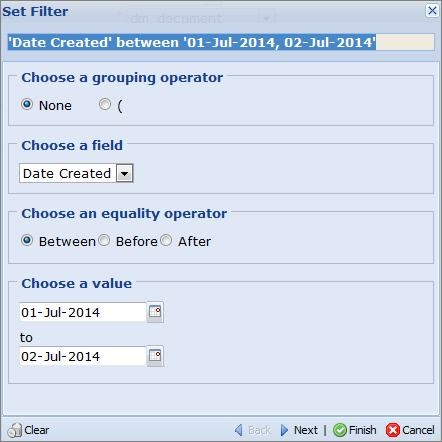
Advanced Query is available only for Documentum and Veeva repositories. Click Build Query to open the Set Filter window and add operators to refine your search criteria. In addition to the required fields, you must choose a Search Folder or Advanced Query to complete a search. — Choose a grouping operator. Choose None, or choose to group multiple filter criteria within parentheses. — Choose a field. Select a field from the keywords list. This list, except for Path, corresponds to the columns in the grid view. If your company configures custom fields for the grid view, those fields also are available. — Choose an equality operator. The equality operators are dynamic and vary according to the selected field. — Choose a value. Enter text, or choose dates, if a date field was selected, to specify the equality operator. Example: To find all documents created on one specific date, in this example, July 1, 2014:
The system retains the last search criteria specified in Advanced Query until those criteria are reset, regardless of whether the DMS Browse/Search window is closed/ reopened, the user logs off from , or the browser window is closed. |
| Clear | Clears and closes the Set Filter window. |
| Back | To return to the previous criteria in your search filter, click Back. |
| Next | To add another item to your search filter, click Next. |
| Finish | When your search filter is completed, click Finish. |
| Cancel | To cancel your last selection while creating the search filter, click Cancel. |
| Field | Description |
| Reset | To remove all search criteria and start over, click Reset. |
| Search | To initiate the search using your selected criteria, click Search. The results appear in the DMS Search Results grid view. |
DMS Search Examples
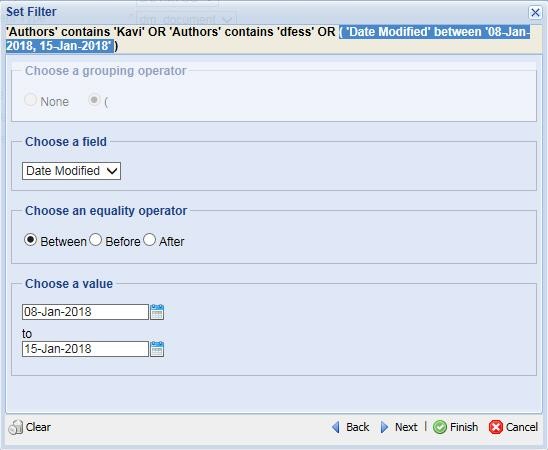
The following images show two different Advanced Query filter examples. The first image shows the filter for searching the repository for documents modified on a single, specific date. The second image shows the filter for searching the repository for documents modified by either of two authors within a date range.
Advanced Query – Set Filter – single date
Advanced Query – Set Filter – either of two authors within a date range
DMS Search Results - Grid View
The DMS Search Results grid view displays the documents for the node selected in the tree view.
When a selected node or folder consists of child folders and documents, then only the documents assigned to selected folder appear in the grid view.
The grid view displays additional attributes for the node selected in the tree view. Folders do not appear in the grid view.
If a repository or folder is selected:
— All documents in that repository or folder appear in the grid view.
— All versions of each document are displayed.
— All versions of each virtual documents are displayed.
If a document or virtual document is selected, all versions of the documents are displayed.
If a version of a document or virtual document is selected, all versions of that document are displayed. The selected version appears first in the grid view.
If multiple nodes are selected in the tree view, the grid view displays only the last node selected.
View an Assigned Document
Steps to view the content of an assigned document in the assembly tree.
To view the content of an assigned document:
- In the assembly tree, click the assigned document the content of which you want to view. The Document Attributes page appears.
- Click
 on the action toolbar.
For the files with file size equal or bigger than the file size value set in assembly service configuration,The
requested action has started processing. Please go to the Job Requests for the status message appears. You can only download the document from Go to > Job Requests. The document is downloaded to the Downloads folder.
- Double-click on the downloaded document to view it.
Assign a Document
You can assign documents to a folder from the assembly tree, or from the repository, using the DMS browse window. You can perform the drag-and-drop function for documents from the DMS browse window only. You cannot perform drag-and-drop with documents from Windows Explorer.
To access a file system from Ennov InSight , it must be mapped by an administrator and accessed from the DMS browse window as a file/folder repository.
To assign a document:
- In the assembly tree do one of the following:
Option Action To select the element that you want to assign a document to Right-click the element and choose Assign Document. To select from a document placeholder Right-click a document placeholder and choose Assign Document. To select from different document placeholders Choose a document placeholder and click Assign Document  .
. - In the repository browse window, do one of the following:
Option Action To successfully drag the document to the assembly Locate the document and click on the document name and drag it to the element or document placeholder. (You must click the text of the document name, not the icon preceding the text.) Locate and choose the document Click OK. - Continue to assign documents or click Close to close the
repository browse dialog box.
The DMS browse window is specific to the assembly from which it is launched and must be closed before assigning documents to another assembly. If you attempt to use the same DMS browse window for a different assembly, this message appears: The open DMS Browse window was not opened for this
Assembly, it will now be closed.
- When creating an assembly, if you click Cancel in the DMS browse window, you are not returned to the assembly tree.
When importing a VDM, the DMS Import dialog box appears behind the browser window. You must minimize the browser window to continue.
Drag-and-Drop Documents from a Veeva Window
You can drag-and-drop documents from another browser instance with opened Veeva Vault page.