
New Assembly Tree
New Assembly Tree: Features
With the new version of the Assembly Tree, you can drag assembly elements to place them between Assembly Tree nodes and also filter the Assembly Tree elements using the new Assembly Tree search option.
You can perform the following actions within the New Assembly Tree:
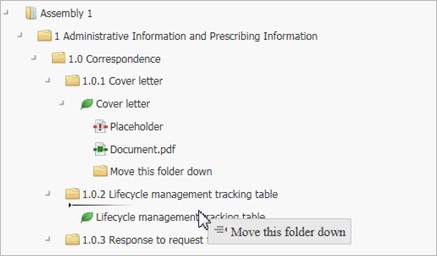
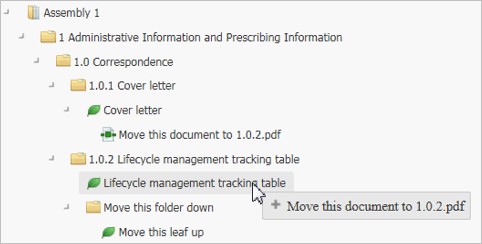
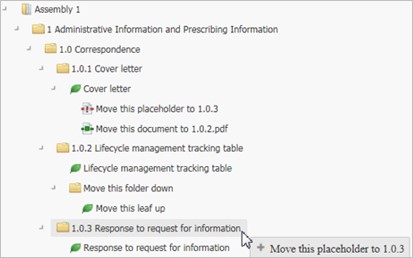
— Use the drag-and-drop feature to move the Assembly Tree elements within an Assembly Tree.
| Drag-and-Drop Folder | Drag-and-Drop Leaf |
|

|
| Drag-and-Drop Document | Drag-and-Drop Placeholder |
|
|
Note: Only a single node can be moved.
— Use the drag-and-drop feature to move volumes and TOCs onto the Assembly Tree elements.
| Drag-and-Drop TOC | Drag-and-Drop Volume |

|

|
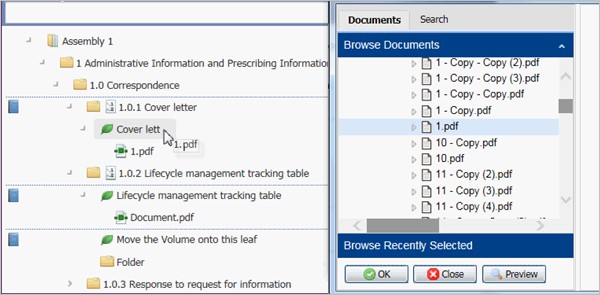
— Use the drag-and-drop feature to add folders, documents, and leafs from the DMS Browse and Browse Assembly windows to an Assembly Tree.
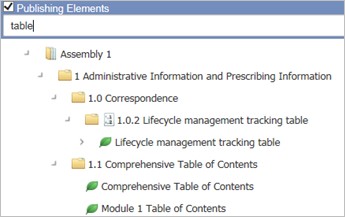
— Use the Search option to filter the Assembly Tree elements by the text entered in the Search field.
As an additional feature, you can select Right-click > Expand Range for an Assembly that has a complicated structure and contains an extensive amount of elements. A confirmation prompt appears and you can confirm that you want to proceed.
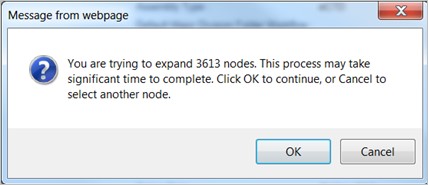
See Limiting Assembly Tree Expand Range.
Assembly Tree
For better system performance, please consider the following when your Assembly has a complicated structure and contains an extensive amount of elements:
— Assembly Tree Search functionality can be used to help in navigation through complex and large assemblies.
— The number of displayed assembly tree elements that match the search criteria can be restricted by defining an upper limit in the insight.var file. See Limiting the Assembly Tree Search Results.
— If the requested range exceeds the value defined in the insight.var, a confirmation prompt appears and you can confirm that you want to proceed.
— If the desired node is placed under a folder with a large number of nodes located at the same level, it is recommended to create a copy of that node and make a custom template including the node.
Move Assembly Elements Within an Assembly Tree
Ennov InSight enables you to perform drag-and-drop actions on assembly elements within an assembly tree. To perform drag-and-drop operations in an assembly tree, you must have the WRITE permission for those assemblies. A single node of the following elements can be dragged onto an assembly tree.
— Folder
— Leaf
— Document
— Placeholder
— Reference Leaf
The following rules apply when using the drag-and-drop feature.
— You can drag single elements within the standalone assembly, initial sequence assembly, assembly template, working view of the sequence assembly or assembly plan, and submitted view of the sequence assembly or assembly plan.
— Dragging elements within the publishing or sequence views of the sequence assembly or assembly plan is not allowed.
The following nodes cannot be dragged onto an assemble tree.
— Withdrawn (Delete) leaf and withdrawn elements in the range under it.
— Replaced or appended leaf.
— Folder, leaf, reference leaf, document, or a placeholder within the lock range of a standard locked root or folder. — Page Marker.
— Folder in the eCTD locked assembly, except dragging a folder under a leaf within the leaf range.
— Root of the assembly.
— Old folder, leaf, document. or a placeholder onto the new assembly tree elements.
— Leaf to another Leaf or document including missing document, document with missing content, document with the missing version, or superseded document.
— Leaf to placeholder.
— Folder to placeholder.
— Folder to document, document including missing document, document with missing content, document with the missing version, or superseded document.
— Parent node to its child node.
Move Volume and TOC onto Assembly Tree Elements
Moving Volume and TOC onto Assembly Tree Elements
Ennov InSight enables you perform drag-and-drop operations to move the volume and TOC publishing elements onto assembly tree elements. The volume and TOC elements can be moved onto the following assembly tree elements.
— Root
— Folder
— Leaf
— Document
— Placeholder
— Page Marker
— Volume (only TOC can be moved onto a volume)
Move a Volume onto Assembly Tree Elements
The following conditions apply when moving a volume onto assembly tree elements:
— Volume cannot be moved onto a locked tree element or a range (standard lock).
— Locked volume cannot be moved.
— Volume cannot be moved to a tree node which already has a volume. — Volume cannot be moved onto the range of a locked volume.
— Volume cannot be moved onto the publishing elements and volume. — Volume cannot be moved from a locked range, except eCTD lock.
Note: Only a single volume node can be moved at a time onto assembly tree elements.
Move a TOC onto Assembly Tree Elements
You can move a TOC onto Assembly Tree Elements with some conditions.
The following conditions apply when moving a TOC onto assembly tree elements:
— TOC cannot be moved onto publishing elements, except volume.
— TOC cannot be moved onto a locked tree element or a range (standard lock), except the range of a locked volume.
— TOC cannot be moved from a locked range, except eCTD lock.
Note: In the new version of the assembly tree, to move a TOC that is attached to a volume using the drag-and-drop feature, a TOC must be dragged onto the icon corresponding to a volume.
Add Assembly Elements from DMS Browse and Browse Assembly Windows
Ennov InSight enables you to perform drag-and-drop actions to add folders, documents and leafs from the DMS Browse and Browse Assembly windows to an assembly tree. To add folders, documents, and leafs you must have the WRITE permission for those assemblies.
The following rules apply when using the drag-and-drop function:
— Folders or documents cannot be moved on to a locked assembly node or range.
— Folders or documents cannot be moved from the DMS Browse window on to a page marker.
— A folder cannot be moved on to a document if assembly has Create Leaf Elements set to Yes.
— A folder or document cannot be moved on to an old leaf that has an appended leaf.
— A folder or leaf cannot be moved on to a withdrawn (deleted) leaf. — A folder or document cannot be moved on to reference leaf.
You must click the text of the name, not the icon preceding the text, to successfully drag a folder, document, or leaf to a new location.
Assembly Tree Filter
Filter the assembly tree elements using the search option on the assembly tree.
Using the search drop-down list, you can also select a node type as a criterion to narrow your search results. The results appear in the same order as they are in the assembly. The maximum number of matching elements displayed depends on the limit set in the insight.var file. When the results exceed the number defined in the insight.var file, a message is displayed with the number of matching elements and the number of elements that will be displayed in the assembly tree. By default, the maximum number for displaying the matching elements defined in the insight.var file is 500.
The following assembly elements can be searched using the search option:
— Assembly root
— Folder
— Leaf
— Reference leaf
— Document
— Placeholder
The search option is available for the following when the new version of the assembly tree is enabled. For procedure on enabling the new version of the assembly tree, see the topic Enabling New Version of the Assembly Tree in the Installation Guide.
— Standalone Assembly
— Assembly Template
— Sequence Assembly (Initial, Working View, Submitted View, Publishing View, Sequence View) — Supporting Sequence Assembly
— Assembly Plan (Initial, Working View, Publishing View, Sequence View, Submitted View) — Lifecycle Assembly/Assembly Plan (Submitted View, Sequence View, Publishing View) — Import Assembly Wizard
— Assembly Comparison Query
— Assembly Status Query
— Change Modified Leaf on the Leaf attributes window
— Convert to Reference Leaf
— Reference Link to an Assembly
— Assembly tree in Linking plug-in (PDF) tool
— Retarget Links in Link Inspector
— Create Assembly from Existing Template, Assembly or View
You will be able to filter an assembly tree based on the search text that matches the values in the following fields:
| Name | Abbreviated Name | Title | Number | Owner | Keywords | |
| Assembly Root | + | + | + | |||
| Folder | + | + | + | + | + | |
| Leaf | + | + | + | + | + | + |
| Document/Placeholder | + | + | + | + | + | + |
You can also filter an assembly tree based on the search text that matches the values of the following extended attributes:
| Extension Type | Associated Attributes | |
| Folder | Drug Substance |
— Drug Substance Name — Drug Substance Manufacturer |
| Drug Product |
— Drug Product Name — Dosage Form — Drug Product Manufacturer |
|
| Clinical Indication | Indication | |
| Excipient | Excipient | |
| Quality Appendix |
— Manufacturer — Substance — Dosage Form — Product Name |
|
| Study Report |
— Full Report Title — Report Number — Operation — Species — Route of Administration — Duration — Type of Control — Subject Matter |
|
| Study Data |
— Dataset Type — Subject Matter |
|
| Leaf | Study Patient Information |
— Subject Matter — Site |
| Study Report | Subject Matter |
Use the following wildcard characters to filter the assembly tree elements:
| Wildcard Character | Description |
| % | Use % to specify that characters can occur in multiple positions. |
| _ (Underscore) | Use _ to specify a single position in which a character can occur. |
Filter Assembly Tree Elements
Use the filtering function to search for assembly tree elements.
To filter the assembly tree elements:
- Navigate to an assembly
- In the search text field, enter the criterion and do the
following:
Option Action To filter an assembly tree based on the search criterion across all node types: Select All Content from the search dropdown list. To filter an assembly tree based on the search criterion for a specific node type: Select a node type from the search drop-down list. - Click the search icon.
The assembly tree is refreshed and shows the branches with the nodes that match the search criteria. Each branch can be expanded up to the matching node.
Advanced Assembly Tree Filter
The Advanced Assembly Tree Filter feature enables you to filter an assembly tree with the available options. The Advanced Assembly Tree Filter feature enables you to filter an assembly tree for: — Empty folders and leafs
— Leafs with the life cycle
— Replace, Append, or Delete and that are being operated in a parallel sequence
— Leafs with leaf status
— Documents with assignment status
Advanced Assembly Tree Filter for all Nodes
The Advanced Search provides you with the numerous options to filter down an assembly for all the Nodes.
To filter an assembly for all node types:
- Navigate to an assembly.
- Click the Advanced Search icon.
- To filter an assembly tree across all node types, select All Content from the search drop-down list.
- In the Search in All Fields field, enter the search criteria.
- Click Search.
Advanced Assembly Tree Filter for Folders
The Advanced Search provides you with the numerous options to filter down an assembly for Folders.
To filter an assembly for empty folders:
- Navigate to an assembly.
- Click the Advanced Search icon.
- From the search drop-down list, select Folders.
- In the Search in All Fields field, enter the search criteria.
- To view only the empty folders that match the search criteria, select Show only empty Folders.
- Click Search.
Advanced Assembly Tree Filter for Leafs
The Advanced Search enables you to filter an assembly for specific leafs based on multiple search criteria.
To filter an assembly for leafs:
- Navigate to an assembly.
- Click the Advanced Search icon.
- From the search drop-down list, select Leafs.
- In the Search in All Fields field, enter the search criteria.
Option Action To filter leafs based on the status: Select a status from the Leaf Status dropdown list. To view only the empty leafs that match the search criteria: Select Show only empty Leafs. To view leafs that are being operated in one or more parallel sequences: Select Show leafs operated in parallel sequences. The option Show leafs operated in parallel sequences is available only in the Working view of a sequence assembly.
- Click Search.
Advanced Assembly Tree Filter for Documents
The Advanced Search provides you with the numerous options to filter down an assembly for documents.
To filter an assembly for documents:
- Navigate to an assembly.
- Click the Advanced Search icon.
- From the search drop-down list, select Documents.
- In the Search in All Fields field, enter the search criteria.
- To filter documents based on the document assignment status,
select a status from the Assignment Status drop-down list.
For information about the document statuses, refer to the topic Document Status Indicators.
- Click Search.