Show Find Options

In addition to the Find What box, use the advanced search features in the Options list to customize and refine your searches for specific words or phrases in documents.

  1. In the Linking add-in (Word) window, click Options and select Show Find Options.
    The additional options appear at the bottom of the Linking add-in (Word) window.
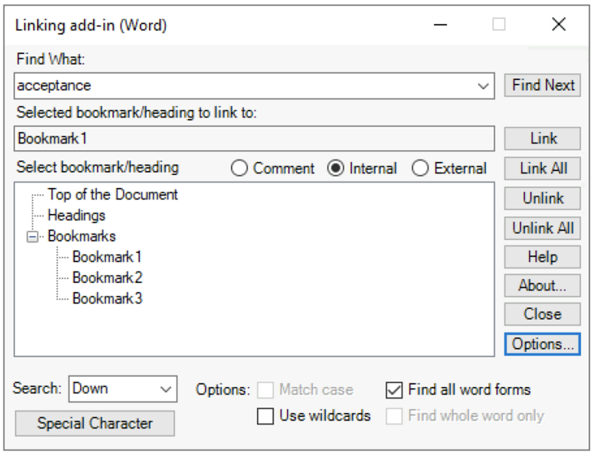
  2. Do any of the following:
    Action Option
    To search for a text in a specific direction (All, Down, Up): Click the Search list.
    For case-sensitive search in the Find What box: Select Match case.
    To find all forms of a word: Select Find all word forms.
    To use wildcards in a search: Select Use wildcards.
    To find whole words only: Select Find whole word only.
    To search for specific special characters (such as hard hyphens): Click Special Character and make a selection.
    Note: A hard hyphen is entered in a document when you press the keys Ctrl+Shift+-. Soft hyphens are inserted by Microsoft Word automatically.