
Example
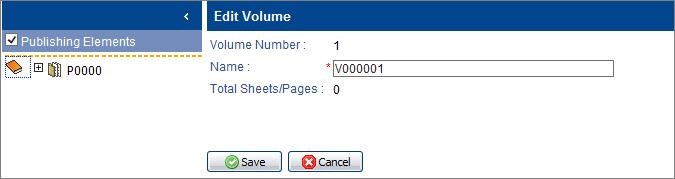
The
Edit Volume
page appears.
3.
Enter a name for the volume.
- Save.
- To protect the volume name from changes, click
 . A message prompts you to confirm the
lock.
. A message prompts you to confirm the
lock. - Click OK.
The volume icon changes to: .jpg)
Move TOCs to Volumes
You can move TOCs from the assembly tree onto a volume by dragging them onto the volume icon.
.jpg)
Delete Volumes
After deleting a volume from an assembly tree, you may need to refresh the assembly tree or refresh the volume so that Ennov InSight displays the remaining volumes correctly.
After deleting a volume from an assembly tree, you may need to refresh the assembly tree or refresh the volume so that Ennov InSight displays the remaining volumes correctly.
To delete a single volume from an assembly:
- Right-click the volume that you want to delete from the assembly.
- Click Delete.
The volume is deleted.
Delete All Volumes from an Assembly
Use this procedure to delete all volumes from an assembly.
To delete all volumes from an assembly:
- Right-click the assembly root.
- On the pop-up menu, click Delete All Volumes.
- To confirm that you want to delete all volumes, click Yes.
Delete Volumes in Bulk
With appropriate permissions, you can delete multiple volumes simultaneously. To delete volumes in bulk, the selected volumes must be unlocked.
To delete volumes in bulk:
- Expand the assembly sections that have the volumes under them.
- Select multiple individual volumes or a range of volumes.
- Right-click and select Delete.
- In the confirmation message, click OK.
The selected volumes are deleted.
Delete Assembly Tree Elements from the Volume Range
Assembly tree elements can be deleted from both locked and unlocked volumes. After the element is deleted from the volume range, the Volume structure will be adjusted automatically. You can remove any assembly tree element from the Volume range:
— Folder
— Leaf
— Placeholder
— Assigned Document
Before deleting an assembly tree element from a volume range, you may need to refresh the volume so that the elements inside the volume range are up-to-date. After deleting a volume from an assembly tree, you may need to refresh the assembly tree so that Ennov InSight displays the volumes correctly.
To delete an assembly tree element from a volume range:
- Right-click the assembly tree element in a volume that you want to delete.
- On the pop-up message click OK to continue.
- The assembly tree element is deleted and the elements structure in the volume is adjusted.
| Option | Description |
| If the deleted element is the first element in the volume: | The structure is adjusted to start with the next element. |
| If the deleted element is the last element in the volume: | The structure is adjusted to finish with the previous element. |