
Prerequisites
| Before you can use the feature, review the following procedures and make sure that the needed configurations are appropriately applied: | |
| Configuring the Veeva Cache Timeout Setting |
The procedure in this topic describes the changes that need to be performed in insight.var file to change the default Veeva cache timeout that is set to 3 minutes to be any other integer value. |
The file can be dragged from another browser window with Veeva Vault opened. You can drag a file or binder from the Veeva Vault Library to the:
— Assembly
— Template
— Working View
To drag-and-drop from Veeva Window:
- From a separate browser window, navigate to the Veeva Vault window.
- Select any file.
- Drag-and-drop the selected file to the target assembly element.
Condition Result If the file dropped onto an assembly element belongs to Veeva Vault, configured and active in Technical Administration: The file is assigned. If the file dropped onto an assembly element belongs to Veeva Vault, deactivated or absent in Technical Administration: The following warning message is displayed:
Repository is either invalid or deactivated.
If the file or object dropped onto an assembly element does not belong to Veeva Vault: The action is ignored. - Select any binder.
- Drag-and-drop the selected binder to the target assembly element.
| Condition | Result |
| If the binder dropped onto an assembly element belongs to Veeva Vault, configured and active in Technical Administration: | The file is assigned. |
| If the file is dropped onto an assembly element belongs to Veeva Vault, deactivated or absent in Technical Administration: |
The following warning message is displayed: Repository is either invalid or deactivated. |
| If the file or object dropped onto assembly element does not belong to Veeva Vault: | The action is ignored. |
Assign a Virtual Document
You can assign a virtual document from a DMS repository to an assembly tree.
You can assign either the root as an assigned document or assign the root with all the child folders and documents with the same hierarchy to the assembly tree.
To assign a virtual document:
- In the assembly tree, right-click the root, folder or leaf where you want to assign the virtual document.
- Choose Assign Document.
- In the Browse dialog box that opens, locate and choose the virtual document.
- Choose one of the following:
Option Action To add the root as an assigned document to the assembly tree without its children Click Only the root node. To add the assembly root and its children, maintaining the same hierarchy as the virtual document Click All child nodes. Note: Assigning a virtual document with all child nodes converts no-content objects in the virtual document to documents with a MISSING CONTENT assignment status in Ennov InSight .
- Click OK.
The virtual document is added to the assembly tree.
Add a Document Placeholder
You can add a document placeholder to an assembly tree to indicate where a document will be added when it becomes available.
To add placeholder elements to an assembly:
- Right-click the assembly root, or the target element on the
assembly tree, and choose Add Placeholder.
Note: When leaf elements are created automatically for the assembly, a new leaf (named New Leaf) is created.
A document placeholder, named New Document, is added to the assembly tree and the Edit Document page appears.
- Enter attributes.
- Save.
Locate Documents
You can locate documents in the browse dialog box and add them to an element you select in the assembly. You can also drag documents from a repository or secure file system to Ennov InSight .
If no repositories have been configured by the Ennov InSight system administrator, an HTTP 500 error will occur when you try to open the DMS browser.
Note: It may be necessary to turn off the pop-up blocker in Google Chrome (Settings > Security and Privacy > Site Settings > Pop-ups and redirects) to enable the drag-and-drop function for moving documents to the assembly from the document browse window.
Search for Documents
To find the DMS location of a document you want to add to the assembly, you can perform a search using the Search tab in the DMS Browse window.
Keep in mind the following as you enter search criteria:
— Ennov InSight searches for a date exactly as you enter it.
— Ennov InSight searches for text exactly as you enter it. You can use wildcard characters (* or %) to search for documents that contain the text you enter.
Search Criteria Options
When performing a search using the Search tab in DMS Browse window, the search option descriptions will help you to enter appropriate search criteria.
The table list all the options that are available to you while performing search in the DMS Browse window.
| Option | Description |
| Authors | Authors whose documents you are searching for. |
| Created Date | The creation date of the document you are searching for. |
| Repository | The repository you want to search. |
| Document Type | The repository document type you are searching for. |
| Keywords | Text to search for. |
| Option | Description |
| Modified Date | Date the document you are searching for was last modified. |
| Name | Name of the document you are searching for. |
| Status | Status of the document you are searching for. |
| Subject | Subject of the document you are searching for. |
| Title | Title of the document you are searching for. |
| Version | Version of the document you are searching for. |
Search for a Document in a Repository
Ennov InSight search functionality enables you to locate a document in a DMS repository and then assign it to an assembly tree.
To find documents to assign to an assembly:
- In the browse repository dialog box, click Search.
- Enter the criteria with which you want to perform the search.
You must enter some selection criteria in addition
to the required DMS Repository, Repository, and Document Type search criteria fields to receive search results.
- Do either of the following:
Option Action To clear your entries and re-enter search criteria: Click Reset. To find documents that meet the search criteria. Click Search. - Choose one or more documents from the search results on the right side of the browse dialog box and do one of the following:
| Action |
| Click Assign. |
| Drag them to the target location in the assembly and drop them. |
Create Missing Renditions and Extractions
Ennov InSight enables you to create new and missing renditions and extractions of the source documents for an assembly.
Rendering retains the content and layout of the source document while transforming it into a PDF file. The extracts, such as bookmarks and headings, of the source documents are copied to the PDF file.
The following rules apply to all documents that have the Use Native File option set to No and that are in the section where you create missing renditions and extractions.
Rules for a Veeva DMS Document Bound to the Standard Rendition Identifier
You must follow specific rules for a Veeva DMS Document.
— If the PDF document does not exist, the job request for creating renditions and extractions is sent.
— If the PDF document exists but an extraction does not exist, the job request for the extraction is sent, and the current rendition is not changed.
— If no documents require renditions or extractions to be created in the section where you try to create missing renditions and extractions, the appropriate job request is set to Completed with the message No Documents to Render in the job details.
Rules for a File Share or for a Documentum Document Bound to the Standard Rendition Identifier
Rules are applied for all documents with Use Native File set to No within the section where the option was invoked from, if the document is from Documentum and is bound to Standard Rendition, or if a document is from File Share.
The following rules are:
— If PDF Exists is set to Yes, but Extraction Exists is set to No, the request for extraction is sent, and the currently existing rendition is not changed.
— If both PDF Exists and Extraction Exists are set to Yes, Ennov InSight compares the .pdf file size of a rendition with the one that is stored internally. If they are different, for example the rendition has been changed outside of Ennov InSight , only extraction request is sent.
— If there are no documents that require renditions/extractions to be created in the section where the option was invoked from, the appropriate job request is set to Completed with No Documents to Render message in job details.
Missing Rendition Identifier Handling for a Documentum Document
The following Missing Rendition Identifier Handling rules apply only to documents assigned from a Documentum
DMS.
There are specific business rules for documents assigned from a Documentum DMS when using the Rendition Identifier functionality. LIQUENT InSight will only create renditions for the Standard Rendition Identifier.
Renditions and extractions are created when the Missing Rendition Identifier Handling setting is Use Standard Rendition, and no rendition exists.
Renditions are not created:
— When the Missing Rendition Identifier Handling setting is Use Standard Rendition, and a rendition exists for the non-standard Rendition Identifier value
— When the Missing Rendition Identifier Handling setting is Do Nothing, and no rendition exists for the nonstandard Rendition Identifier value
Only extractions are created when the following conditions are met:
— When the Missing Rendition Identifier Handling setting is Use Standard Rendition, and a rendition exists for the non-standard Rendition Identifier value, but no extractions currently exist
— When the Missing Rendition Identifier Handling setting is Use Standard Rendition, and a rendition exists for the non-standard Rendition Identifier value, and the rendition file size has changed
— When the Missing Rendition Identifier Handling setting is Do Nothing and a rendition exists for the nonstandard Rendition Identifier value, but no extractions currently exist
— When the Missing Rendition Identifier Handling setting is Do Nothing and a rendition exists for the nonstandard Rendition Identifier value, and the rendition file size has changed
Missing Rendition Identifier Handling for a Veeva Document
The following Missing Rendition Identifier Handling rules apply only to documents assigned from a Veeva DMS.
Renditions and extractions are created when the Missing Rendition Identifier Handling setting is Use Standard Rendition, no PDF rendition exists, and no rendition with the rendition identifier value Ennov exists.
No renditions or extractions are created when the Missing Rendition Identifier Handling setting is Do Nothing and no PDF rendition exists.
Only extractions are created:
— When the Missing Rendition Identifier Handling setting is Use Standard Rendition, no PDF rendition exists, and a rendition with the rendition identifier value parexel exists, but no extractions for the latter rendition exists.
— When a PDF rendition exists, but no extractions for that rendition exists.
Create Missing Renditions and Extractions
Use the procedure to create missing renditions and extractions of the source documents for an assembly. You can also track the progress of the process from the Job Request page.
Note: You must have the appropriate security privileges to create new/missing renditions and extractions.
To create missing renditions and extractions:
- Right-click on a node in the assembly tree.
- In the menu, click Create Missing Renditions and Extractions.
- To track the progress of the process, chose Go To > Job Requests.
- On the Job Requests page, set the filtering information and click Search.
Force New Renditions and Extractions
Force New Renditions and Extractions overwrites all existing renditions and extractions, and creates missing renditions and extractions for the selected node and all of its child nodes.
Forcing new renditions and extractions will cause custom bookmarks, modified TOC entries, in-process links, and (depending on your DMS configuration) signature pages to be lost.
Note: Access to this functionality is dependent on your user role and permissions in the system, and on your permissions within the repository.
Force Renditions and Extractions with Rendition Identifiers
The following Missing Rendition Identifier Handling rules apply only to documents assigned from a Documentum or Veeva DMS.
Specific business rules for documents assigned from a Documentum or Veeva DMS apply when using the rendition identifier functionality. Ennov InSight creates renditions only for the Standard Rendition Identifier.
Note: In a Documentum DMS, the Standard Rendition identifier (NULL) identifies renditions with PAGE_MODIFIER set to NULL. In a Veeva repository, the Standard Rendition identifier (parexel) identifies the same kind of renditions.
Renditions and extractions are created/overwritten when the Missing Rendition Identifier Handling setting is Use Standard Rendition.
Renditions are not created when the following conditions exist:
— When the Missing Rendition Identifier Handling setting is Use Standard Rendition and a rendition exists for the non-standard Rendition Identifier value.
— When the Missing Rendition Identifier Handling setting is Do Nothing.
Only Extractions are created when the following conditions are met:
— When the Missing Rendition Identifier Handling setting is Use Standard Rendition and a rendition exists for the non-standard Rendition Identifier value.
— When the Missing Rendition Identifier Handling setting is Do Nothing and a rendition exists for the nonstandard Rendition Identifier value.
Force New Renditions and Extractions
You can use the Force New Renditions and Extractions option to overwrite existing renditions and extractions, creating missing renditions and extractions for the selected node and all of its child nodes.
Forcing new renditions and extractions causes custom bookmarks, modified TOC entries, in-process links, and (depending on your DMS configuration) signature pages to be lost.
To force new renditions and extractions:
- On the assembly tree, select the assembly root, a folder, or
leaf.
The Force New Renditions and Extractions function applies to the selected element and all children assigned to that element.
- On the Moremenu, choose Force New Renditions and
Extractions
 .
. - Read the CAUTION message, and make sure that you want to
proceed.
Force New Renditions and Extractions creates missing renditions and extractions, overwrites all existing renditions and extractions for the selected node and all of its child nodes, and will result in the loss of:
— Custom bookmarks
— Modified TOC entries
— In-process links
— Signature pages (depending on your DMS configuration
- To complete the Force New Renditions and Extractions action,
click OK.
Existing renditions and extractions will be overwritten. Missing renditions and extractions will be created.
- To quit the Force New Renditions and Extractions action, click Cancel.
- To track the progress of the action, choose Go To > Job Requests.
- On the Job Requests page, enter appropriate information and click Search.
- After the Force New Renditions and Extractions action is completed, refresh the assembly (or reselect the document elements) to see that the following options are set to Yes:
— PDF Exists
— Extraction Exists
Multiple Renditions Support
provides support for associating and publishing renditions using custom Rendition Identifiers (page_modifier) for documents in a Documentum DMS.
All documents assigned within an assembly are bound to the default Rendition Identifier that is set in the Publishing Settings for the assembly. After documents have been assigned to an assembly, the Rendition Identifier can be updated for a single document or for a group of documents (the selected assembly element and all of its children) using Apply Binding to All Children.
If the rendition with the defined Rendition Identifier does not exist, you can set the Missing Rendition Identifier Handling option to control how the document will be included during publishing. This option is available in the Publishing Settings Library, on the Publishing Settings tab. The Missing Rendition Identifier Handling option on the Publishing Settings tab provides two options: Use Standard Rendition (this is the default option) or Do Nothing.
If Use Standard Rendition is selected, Ennov InSight searches for a rendition with page_modifier set to NULL and uses it for publishing. If Do Nothing is selected, a missing rendition message will be logged.
Document List Query
The Document List query provides a view of the placeholders and assigned documents associated with an assembly structure.
This view is a non-hierarchical view of the placeholders and assigned documents in the submission. You can use the query to perform ad-hoc querying, tracking, and planning of placeholders and assigned documents.
Note: The Document List query is specific to the current assembly, not the current active view.
Generate a Document List Query
Use the Document List query to generate a table that displays assigned documents and their attributes for the assembly.
On the assembly root, right-click and select View Document List.
The resulting table lists all of the documents that are assigned to the assembly.
Select Document List Columns for Display
By default, all of the available columns are displayed in the generated Document List. You can choose to view fewer columns by opening the Columns list and clearing the check boxes next to the column names. To add an omitted column back to the Document List view, select the check box for that column.
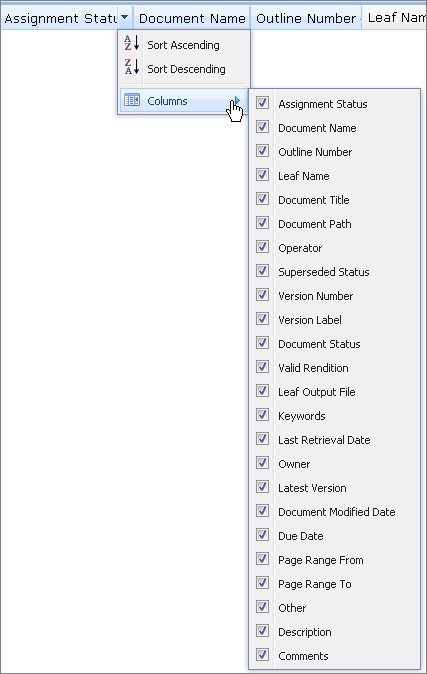
Document List Query Results
The descriptions of column names helps you to understand the information displayed in the Document List query results.
This table contains all of the columns and describes the information displayed in the Document List query results.
| Column Name | Description |
| Assignment Status |
Lists documents that meet binding or missing binding or no longer exist in the data repository. Leaf elements that have no documents are not displayed. |
| Comments | Exceptions or clarifications about the document |
| Description | A brief description of the document |
| Document Family ID | The reference code for the document family |
| Document ID | The reference code for a document |
| Document Modified Date | When the document was last modified |
| Document Name | The name of the document. |
| Document Path | The location of the document in your system |
| Document Status | The status of the document |
| Document Title | The title given to the document |
| Due Date | The date that the document is due |
| Has Open Activities | Indicates whether there are active activities associated with the document |
| Keywords | Words that help to identify or describe the content of the document |
| Last Retrieval Date | Last time the document was synchronized with the DMS |
| Latest Version | Most current version of the document |
| Leaf Name | The name of the leaf where the document is located |
| Leaf Name | The name of the leaf where the document is located |
| Leaf Output File | Relative path and / or the file name of the published output for the leaf |
| Leaf Status | The value of the Leaf Status attribute from the leaf element |
| Operator | The eCTD lifecycle status for the leaf |
| Other | Additional information about the document that was saved |
| Outline Number | The eCTD outline number for the leaf |
| Owner | Person responsible for the document |
| Column Name | Description |
| Page Range From | Start of the range of pages in the source document that are used in the assembly |
| Page Range To | End of the range of pages in the source document that are used in the assembly |
| Superseded Status | Indicates if a more recent version of the specified file is available in the repository |
| Valid Rendition | Indicates that a valid rendition of the document exists |
| Version Label | The status of the version (Current, Superseded) |
| Version Number | Version of the document |
Document Status Indicators
You can view the assignment status of an assigned document or a document placeholder, and the superseded status of an assigned document. A document with a superseded status is identified by the red label: Newer Version Available. The assignment status is determined by the binding options and the values and availability of documents in the repository, as follows:
— The assignment status indicates whether the file you want to bind to the assembly is available in the repository.
— The superseded status, indicated by a red label that says Newer Version Available, indicates whether a document available in the repository is more recent than the document assigned in the assembly.
When you assign a document to an assembly, it is added to the assembly tree and its icon indicates its status. The following table identifies the document status icons.
| Icon | Meaning | Description |

|
Bound | The document exists, it has content and the binding rule has been satisfied. |

|
Unassigned | This is a document placeholder; it indicates that no document has been assigned. |

|
Superseded | The document exists, it has content and the binding rule has been satisfied, however a newer version of the document exists. |

|
Missing version | A version of the document exists that is different from the one specified by the binding rule. |

|
Missing | No version of the assigned document exists. |

|
Missing content | The document exists and the binding rule has been satisfied, however the document has no content associated with it. This can occur if a virtual document has been assigned from the repository. |
Synchronize Document Attributes
As the documents change in the DMS, synchronizing document attributes enables you to see the current DMS attributes in Ennov InSight .
Attributes that map to DMS values are indicated by  on the Document Attributes
page.
on the Document Attributes
page.
When a DMS synchronization occurs, the following happen:
— The value for Last Repository Data Retrieval (on the Document Attributes page) is updated for the root, all folders, leaf elements, documents, and document placeholders.
— All calculated and mapped attributes (for example, assignment status and version numbers) are updated.
— Any other attributes for which you changed the values in Ennov InSight revert to their DMS attribute values.
Keep in mind the following:
— HTML text strings enclosed in angle brackets (< >) that map to Ennov InSight attributes do not appear in document attributes. HTML numeric strings map correctly.
— Running a DMS Synchronization on the root of a lifecycle working view performs a synchronization on documents from the previous sequence. Updates to documents from previous sequences do not become part of the current active view. Be aware, however, that if you synchronize the root and thereafter find unexpected attribute values on documents from previous sequences, you should check the same document in the current active view to determine the values of the document in the previous sequence.
— Running a DMS Synchronization from the Working View sends all previous sequences for Rendition & Extraction. Only documents for which there are no renditions and extractions are sent.
— Synchronizing large assemblies can slow the repository's performance and prevent other users from accessing it temporarily.
— Synchronization may be slower than expected if the DMS has limited space.
— Ennov InSight binds directly to specific versions of documents in a DMS repository. Because of this, Ennov InSight does not support the automatic or manual deletion of previous versions in a DMS. If you delete versions in your repository, Ennov InSight may generate an error when you attempt to synchronize to a version that no longer exists. You can avoid this by reassigning the document through the binding rule to a version that still exists.
Synchronize Documents with the DMS
You can run a DMS Synchronization from the Working View to send all previous sequences for Rendition & Extraction. Only documents for which there are no renditions and extractions are sent for Rendition & Extraction.
To synchronize document attributes with the DMS:
- In the assembly tree, do one of the following to open the
attributes page for the element:
Action Choose the root to synchronize the entire assembly. Choose an individual element to synchronize. - Click
 . A message prompts you to
confirm the synchronization. Click Yes for one of the
following:
. A message prompts you to
confirm the synchronization. Click Yes for one of the
following:
| Option | Action |
| Update the InSight document properties from the attributes: | Replaces the assembly attributes with those values in the DMS. |
| Update the Reference Location attributes from InSight: | Updates the existing reference location in the DMS with the latest version, label, and status information from the assembly, as well as additional configured attributes. |
Note: The Ennov InSight hourglass does not appear as the DMS synchronization occurs, however, synchronization can sometimes take several minutes to complete, depending on the speed of the associated DMS.
Attributes preceded with

are updated with the current values in the DMS.
View a Document Content
Steps to view the content of the document being assigned from the Browse Documents.
To view the content of the document being assigned:
- In the assembly tree, right-click on the leaf.
- Select Assign Document.
- In the Documents tab, find and select a document from Documentum, Veeva, or Secured File System.
- Click Preview under the Browse Resently Selected section. The document is downloaded to the Downloads folder.
- Find the document and check its content.
View Document Versions
You can view the version of a document from the assembly tree.
To view document versions:
- Click a link for the assembly whose document versions you want to view.
- On the assembly tree, click the document whose versions you want to view.
The document versions appear in the lower-right corner under the document attributes.
Related Documents
You can replace an assigned document in an assembly tree with one of its related documents.
Ennov InSight provides a list of related documents, if they exist, for each assigned document.
Related documents are defined by document relations, a concept defined and supported by Documentum. When you replace a document with a related document, the link from the assembly tree to the original document is deleted and a link is created between the assembly tree and the related document.
Note: Replacing a document with a virtual document is not currently supported.
Assign a Related Document
Use the procedure to replace an assigned document with one of its related documents in an assembly tree.
To replace a document with a related document:
- In the assembly tree, right-click the document you want to replace and choose Assign Related Documents. The list of related documents appears.
- Choose a related document from the list and click Assign Document.
Unassign Documents
You can remove the link to a document from the assembly tree by unassigning the document. When you unassign a document, the following happen:
— Selected attributes (as specified by your administrator) are cleared from the Document Attributes page. — The assignment status on the Document Attributes page changes.
— The icon next to the document in the assembly tree
changes to .jpg)
Unassign a Document
Use the procedure to remove the link to a document from the assembly tree by unassigning a document.
To unassign a document:
- Do one of the following:
Action Choose the document in the assembly tree and click .png) .
.Right-click the document in the assembly tree and choose Unassign Document. A message prompts you to confirm the change. - Click OK.
- If
.jpg) does not replace the
document icon in the assembly tree, right-click the assembly root
and choose Refresh Tree.
does not replace the
document icon in the assembly tree, right-click the assembly root
and choose Refresh Tree.
Submission Readiness Report
The Submission Readiness report shows, for each module in an assembly, the number and percentage of documents that fall into each of ten categories.
Each category is related to a document assignment status, approval status if assigned, due date of the parent leaf, and whether a document is in Documentum.
Your SPT license must be enabled to provide access to the Submission Readiness report.
Key questions answered by this report include:
— How many documents are assigned?
— How many documents have been approved?
— How many leafs are on time, and how many are late? — How many documents are located on a file share?
If a document is in Documentum, the document is in one of the following categories: — Assigned, Approved, Not Yet Due
— Assigned, Not Approved, Not Yet Due
— Assigned, Approved, No Due Date
— Assigned, Not Approved, No Due Date
— Not Assigned, Not Yet Due
— Assigned, Approved, Past Due
— Assigned, Not Approved, Past Due
— Not Assigned, Past Due
— Not Assigned, No Due Date
If a document is not in Documentum, the document is in the category Outside Documentum.
Synchronize the documents with the DMS before running this report.
A chart shows the categories for each module.
Generate a Submission Readiness Report
You can generate the Submission Readiness report to show categories of documents and the number of documents in each category.
To generate a Submission Readiness report:
- Display the Assembly Attributes page for the assembly.
- Click More in the top right corner of the page.
- Click Submission Readiness Report.
View the Assembly Document List
You can view the list of documents in the assembly tree.
To view a document list:
1. Right-click the assembly root and choose View Document List.