Use a comment link to make a placeholder for a future document reference.
A comment link serves as a placeholder for a link to a document that does not yet exist. The comment link is a means for reminding publishers that a link must be created once the document exists.
-
Do one of the following:
| Condition
|
Action
|
| If you opened the PDF from a file system or DMS,
|
Open
Link Stamper
.
|
| If you invoked link editing for an in-process PDF rendition from
Calyx RIM, the log on prompt appears after Acrobat opens.
|
Log on to maintain a connection between
Linking plug-in (PDF) and
Calyx RIM. Type your
Calyx RIM
User Name and
Password, and then click
OK.
|
-
Click-and-drag the pointer to create a bounding box around the text that will include the hyperlink.
-
In the
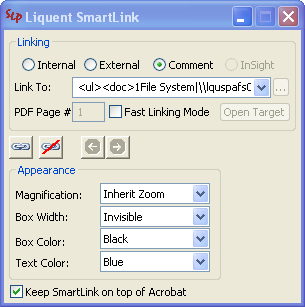
Link Stamper dialog box, do the following:
-
Select
Comment.
-
In the
Link To drop-down box, enter an appropriate comment to remind publishers of the link that needs to be created once the target document exists.
-
Under
Appearance, specify the attributes for the magnification, text color, and bounding box.
Note: If you invoked link editing for an in-process PDF rendition from
Calyx RIM, the link appearance attributes do not appear in the
SmartLink for PDF dialog box. The comment link is automatically created with blue text and a red bounding box. During the publishing process, the appearance of the link is changed to the link attributes defined in the Publishing Settings in
Calyx RIM.
-
Click the
Link button to create a comment hyperlink with the attributes you defined.
-
Repeat these steps for comment link you need to create.
The
Link Stamper dialog box preserves the previously defined settings so that you can create multiple links with minimal or no changes.
-
To save your hyperlinks, do one of the following:
| Condition
|
Action
|
| If you opened the PDF from a file system or DMS
|
Click
in Acrobat.
|
| If you invoked link editing for an in-process PDF rendition from
Calyx RIM
|
see
Save In-Process Rendition Changes to InSight.
|
 Note: If you invoked link editing for an in-process PDF rendition from Calyx RIM, the link appearance attributes do not appear in the SmartLink for PDF dialog box. The comment link is automatically created with blue text and a red bounding box. During the publishing process, the appearance of the link is changed to the link attributes defined in the Publishing Settings in Calyx RIM.