You can add countries to an existing timeline/event plan in Data Administration to associate the timeline/event plan to the added countries.
To add countries to an event plan:
-
In
Calyx RIM, click .
The
Data Administration page appears.
-
On the Data Administration page, under Event Maintenance, click
Timeline/Event Plan Values.
The
Timeline/Event Plan page appears.
-
On the
Timeline/Event Plan page, click the link for the timeline/event plan to which you want to add countries.
-
On the
Timeline/Event Plan Countries tab, click the
Add Countries icon.
The
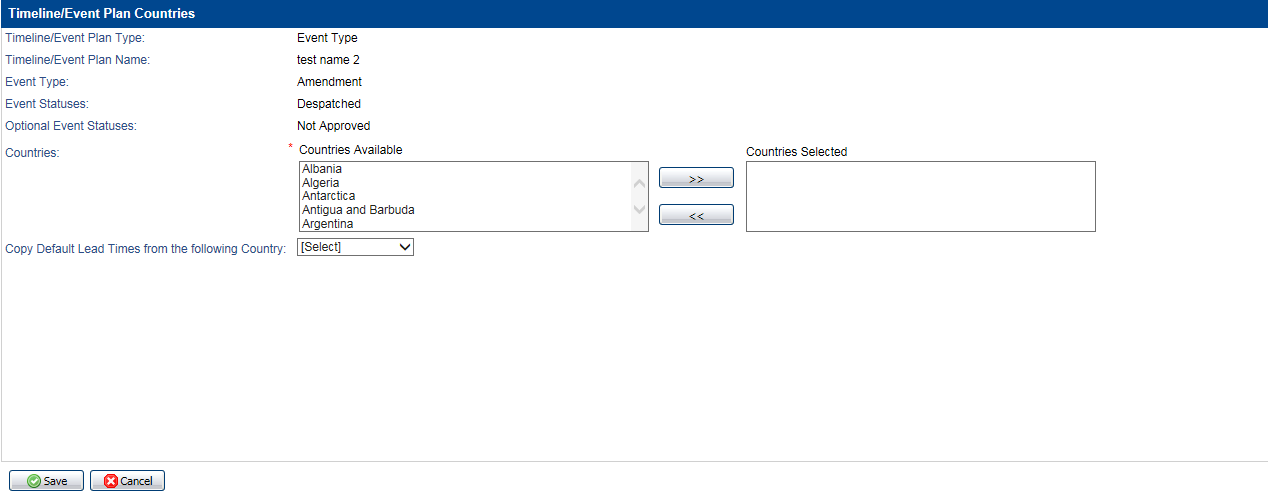
Timeline/Event Plan Countries page appears.
-
To add countries to the timeline/event plan, select countries in the
Countries Available box and move them to the
Countries Selected box.
The default lead times for the countries that you add are
0.
-
As an option, you can apply the default lead times for another country to the country that you are adding. In the
Copy Default Lead Times from the following Country list, select the country that has the default lead times that you want to apply.
If you do not select a country lead time to apply, the default lead times for the country that you add are
0.
-
Click
Save.