
Event Maintenance
Event values appear in selection lists on the Event Attributes page and are designated when an event is created. You can use Data Administration to add and modify event attribute values, and to set the status of a value to active or inactive.
When you select a value under Event Maintenance, a page opens with a table of all values that have been defined. You can sort these values by column. The default view is sorted in ascending, alphanumeric order.
Note: The proper data administration access privileges are required to view and modify event maintenance values.
Event Maintenance: Event Values
Ennov InSight lets you use Data Administration to add and modify Event values and attributes, and to set statuses on those attributes.
You can create and maintain the following Event values:
| Value | Description |
| Action Type | Approval required before request is considered active, for example, implement without notification, notification after implementation, etc. |
| EU Grouping or Worksharing | Identifies whether an event is part of a sharing or work group activity. |
| Event Status | For example, planned, in effect, in discussion, approved, refused, etc. Create event statuses before you create timeline/event plans. |
| Event Type |
Regulatory action for example, original filing, variation type I, variation type II, supplement, etc. Create event types before you create secondary event types. Secondary event types can be associated only with existing event types. |
| Value | Description |
| PSUR Report Code |
Abbreviation associated with the PSUR being reported on, for example: A = Authorized, AQ = Authorized with Qualifications, LA = Lack of Approval, V = Voluntary Marketing Application Withdrawn by Company, AR = Authorization Renewal |
| Secondary Event Type | Type of event based on the primary event type, for example, Change to Content of Manufacturing Authorization, Change in Name of Medicinal Product, Change in Name and/or Address of MAH for a primary event of Variation Type I. |
| Timeline/Event Plan Type | The type of timeline/event plan used to create or update an event. The timeline/ event plan type can be procedure type, event type, or none. An event created or updated by using the procedure type of timeline/plan has a sequence of statuses that are relevant to the procedure type selected for the event. An event created or updated by using the event type of timeline/event plan has a sequence of statuses that are relevant to the event type selected for the event. An event created or updated by specifying none for timeline/event plan type can have any sequence of active statuses. |
| Timeline/Event Plan | An ordered set of milestones that represent the progression of event statuses you expect to occur for an event. |
Action Type Attributes
To define an action type value, enter values for the following attributes:
| Attribute | Description |
| Name | The name of the action type. Examples: Notification before Implementation, Implement w/o Notification, Notification after Implementation. |
| Last User Updated | Indicates the name of the user who last created/updated the action type. By default, this option is read-only. It is populated automatically when updates were made to the table. |
| Last Changed Date | Indicates the date when the last change was made. By default, this option is read-only. It is populated automatically when updates were made to the table. |
| Active | Indicates if the entity is active or inactive. |
EU Grouping or Worksharing Attributes
To define a EU grouping or worksharing activity value, enter values for the following attributes:
| Attribute | Description |
| EU Grouping or Worksharing | Values available for selectin to indicate Grouping or Worksharing activities on the Event entity. |
| Attribute | Description |
| Default Flag | Flag to indicate if the value is the default.Yes and No values are available for selection. |
| Last User Updated | Indicates the name of the user who last created/updated the EU grouping or worksharing value. By default, this option is read-only. It is populated automatically when updates were made to the table. |
| Last Changed Date | Indicates the date when the last change was made. By default, this option is read-only. It is populated automatically when updates were made to the table. |
| Active | Indicates if the entity is active or inactive. |
Event Status Attributes
To define an event status value, enter values for the following attributes:
| Attribute | Description |
| Name | The name given for the Event Status. Examples: Approved, In Discussion, If Effect, In Review, Planned, Not Approved, Refused, Submitted, Despatched, Data Available, Day 0, Withdrawn. |
| Last User Updated |
Indicates the name of the user who last created/updated the event status. By default, this option is read-only. It is populated automatically when updates were made to the table. |
| Last Changed Date | Indicates the date when the last change was made. By default, this option is read-only. It is populated automatically when updates were made to the table. |
| Default Flag | Flag to indicate if the value is the default.Yes and No values are available for selection. |
| Internal System Status | The internal status associated to the PDS status. Examples: Submitted, Approved, Not Approved, Day 0, Data Available, Despatched and Withdrawn. |
| Active | Indicates if the entity is active or inactive. |
Event Type Attributes
To define an event type value, enter values for the following attributes:
| Attribute | Description |
| Name |
The name of the event type. Examples: Original, Supplement, Amendment, Variation I, Variation II, Withdrawal, Annual Report, Resubmission, Pre-submission, Establishment Description Supplement, Efficacy Supplement, Labeling Supplement, CMC Supplement. |
| Last User Updated | Indicates the name of the user who last created/updated the event type. By default, this option is read-only. It is populated automatically when updates were made to the table. |
| Last Changed Date | Indicates the date when the last change was made. By default, this option is read-only. It is populated automatically when updates were made to the table. |
| Active | Indicates if the entity is active or inactive. |
PSUR Report Code Attributes
To define a PSUR report code value, enter values for the following attributes:
| Attribute | Description |
| PSUR Report Code |
Code/Abbreviation associated with the PSUR being reported on. Examples: A=Authorized, AQ=Authorized with Qualifications, LA = Lack of Approval, V= Voluntary marketing application withdrawn by company, AR=Authorization Renewal. |
| PSUR Report Code Name | Full Description of the Report Code. |
| Last User Updated | Indicates the name of the user who last created/updated the PSUR report code values. By default, this option is read-only. It is populated automatically when updates were made to the table. |
| Last Changed Date | Indicates the date when the last change was made. By default, this option is read-only. It is populated automatically when updates were made to the table. |
| Active | Indicates if the entity is active or inactive. |
Secondary Event Type Attributes
To define a secondary event type value, enter values for the following attributes:
| Attribute | Description |
| Name | Secondary Level Events that are based on the Primary Event Type. |
| Primary Event | Primary Event Types. |
| Attribute | Description |
| Last User Updated | Indicates the name of the user who last created/updated the secondary event type. By default, this option is read-only. It is populated automatically when updates were made to the table. |
| Last Changed Date | Indicates the date when the last change was made. By default, this option is read-only. It is populated automatically when updates were made to the table. |
| Active | Indicates if the entity is active or inactive. |
Timeline/Event Plan Type Attributes
To define a timeline/event plan type value, enter values for the following attributes:
| Attribute | Description |
| Timeline/Event Plan Type | The type (event type, procedure type or none) that the Timeline/Event Plan is created from. Hyperlinked from the view screen. |
| Default Flag | Flag to indicate if the value is the default.Yes and No values are available for selection. |
| Last User Updated | Indicates the name of the user who last created/updated the timeline/event plan type. By default, this option is read-only. It is populated automatically when updates were made to the table. |
| Last Changed Date | Indicates the date when the last change was made. By default, this option is read-only. It is populated automatically when updates were made to the table. |
| Active | Indicates if the entity is active or inactive. |
Timeline/Event Plan Attributes
To define a timeline/event plan value, enter values for the following attributes:
| Attribute | Description |
| Timeline/Event Plan Type | The type (event type or procedure type) that the Event Plan is created from. |
| Timeline/Event Plan Name | Name for the Event Plan. |
| Procedure Type | Procedure Types for which the milestones apply. All active external Procedure Types are available for selection. |
| Enforce Status Progression | Yes/No drop-down menu that determines if the status for the Event Plan should have progression enforced. |
| Event Statuses | The milestones/statuses that are applicable. |
| Attribute | Description |
| Optional Event Statuses | These are the optional statuses that the event might progress to that are not planned/expected for the event. Examples: Not Approved, Rejected etc. |
| Last User Updated | Indicates the name of the user who last created/updated the timeline/event plan. By default, this option is read-only. It is populated automatically when updates were made to the table. |
| Last Changed Date | Indicates the date when the last change was made. By default, this option is read-only. It is populated automatically when updates were made to the table. |
| Active | Indicates if the entity is active or inactive. |
Timeline/Event Plans and Country Lead Times
In Ennov InSight , a timeline/event plan is an ordered set of milestones that you define for an event. The ordered milestones in a timeline/event plan represent the progression of event statuses you expect to occur for an event. You have the option to apply a timeline/event plan when creating an event.
Note: The set of event statuses can vary depending on the regulatory action taking place or on the procedure type.
Country lead times is a feature that enables you to predefine a default interval of days on a per country basis for each event status in a timeline/event plan. The lead times are tracked in a table on the Timeline/Event Plan page that displays all of the event statuses per country in the order defined for the timeline/event plan.
You can create a timeline/event plan by using the Timeline/Event Plan Wizard.
Use the Create Timeline/Event Plan Wizard
You can create a timeline/event plan using the Create Timeline/Event Plan wizard.
Note: Access to the Create Timeline/Event Plan wizard is established in Ennov InSight Security Administration. In the Home Page Access section, the Data Administration option must be set to Yes for the user.
To create a timeline/event plan:
- Start the Create Timeline/Event Plan wizard using one
of the options:
— Wizards > Create Timeline/Event Plan .
— On the upper navigation pane, choose GO TO > Data Administration. Under Event Maintenance, click Timeline/Event Plan Values. Click the Create icon.
- On the Enter Timeline/Event Plan Details page: — Select a timeline/event plan type.
— Enter a timeline/event plan name.
— Select the event type or procedure type.
— Select the region type of the region, containing the countries for which you will use the timeline/event plan. — Select the region that belongs to the selected region type.
— Select the countries for which you will use the timeline/event plan.
— In the Enforce Status Progression field, select Yes or No. Enforcing a status progression limits the statuses an event country schedule can transition to. It is based on the progression setup in the timeline/event plan when the event was created.
— Select the required event statuses for which you want to specify lead times in the timeline/event plan.
— Optionally, select the optional event statuses for which you want to specify lead times in the timeline/event plan.
- Click Next.
The Create Timeline/Event Plan Confirmation page opens.
- Click Next.
The Enter Lead Times Values page opens.
- Enter a lead time for each event status.
To select a Lead Time field, double-click it.
- Click Next.
The Create Timeline/Event Plan Lead Time Confirmation page opens.
- Click Next.
The Create Plan Summary page opens.
Note: The timeline/event plan is a hyperlink to the created Timeline/Event Plan Attributes page.
- Click Finish.
Prepare to Modify a Timeline/Event Plan
You can modify a timeline/event plan to change the progression of event statuses you expect to occur for an event. However, certain configurations must be performed before you modify a timeline/event plan. The configurations to be performed are:
— To use the Change Approval wizards with events created from a timeline/event plan, the Approved and Not Approved statuses must be included in the timeline/event plan.
— To use the Change Submittal wizards with events created from a timeline/event plan, the Submitted status must be included in the timeline/event plan.
— If you move an event status from the Event Statuses Selected multi-select box to the Event Statuses Available multi-select box for Event Statuses, and then move that same status from Event Statuses Selected to Event Statuses Available for Optional Event Statuses, an error message appears after you click Save. Instead, click Save immediately after moving the event status from Event Statuses Selected to Event Statuses Available for Event Statuses, and then resume modifying the timeline/event plan to move the event status from Event Statuses Selected to Event Statuses Available for Optional Event Statuses. Click Save again when you have completed your additional modifications.
Modify a Timeline/Event Plan
You can modify a timeline/event plan from the Data Administration page.
To modify an existing timeline/event plan:
- In Ennov InSight , click Go To > Data Administration.
- On the Data Administration page, under Event Maintenance, click Timeline/Event Plan Values.
- On the Timeline/Event Plan main page, click the link for the timeline/event plan that you want to modify.
- Click the Edit icon to modify the timeline/event plan.
The initial fields for modifying a timeline/event plan are displayed.
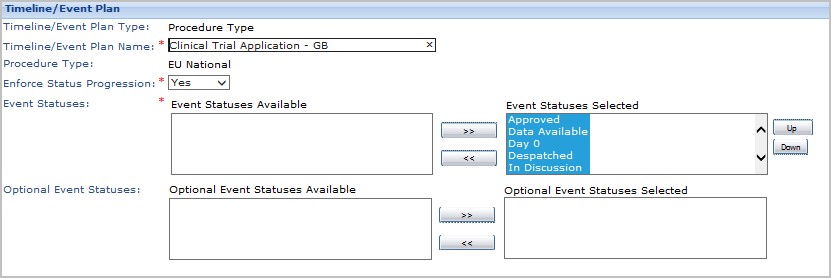
- On the Timeline/Event Plan page, do one of the
following:
Action Procedure Enter your changes to the timeline/event plan attributes Click Save. To add this timeline/event plan to these drop-down lists and selection boxes Click Activate. To hide this timeline/event plan from the drop-down lists and selection boxes where you would be selecting an timeline/event plan value Click Deactivate. - You are returned to the Timeline/Event Plan Attributes page.
Timeline/Event Plan Attributes
Use the timeline/event plan attribute information to select and enter the appropriate values while you define and modify timeline/event plans. The table describes the timeline/event plan attributes that are available when you define a timeline/event plan.
| Attribute | Description |
| Active Flag | Displayed only on the view page, this indicates whether the timeline/event plan is hidden from or shown in the drop-down lists or selection boxes where you select a timeline/event plan value. |
| Attribute | Description |
| Countries |
The countries for which lead times can be defined for the different statuses defined in a timeline/event plan. When creating a timeline/event plan for the CP procedure type, select European Union as the country. |
| Note: For existing timeline/event plans, all associated countries are displayed under the Timeline/Event Plan Countries tab. | |
| Lead Time |
This specifies the interval of days to occur between a selected event status and the previous status in the timeline/event plan for the selected country. — The recommended best practice is for the first status in the timeline/event plan to have a lead time of zero since this is the starting point for the timeline/event plan. — The Default Lead Time attribute appears only on the Create Timeline/Event Plan page. |
| Timeline/Event Plan Name | Name for the timeline/event plan. |
| Timeline/Event Plan Type |
The type of timeline/event plan. Can be event type or procedure type. This attribute is required, and is editable only when creating the Timeline/Event Plan. On the Modify Timeline/Event Plan page, this field appears as read-only. |
| Enforce Status Progression | Enforcing a status progression limits the statuses an event country schedule can transition to based on the progression defined in the timeline/event plan. Yes or No. |
| Event Statuses | The milestones that are applicable to the timeline/event plan. The order that you select these statuses dictates the status order for the plan. |
| Note: The first status in a timeline/event plan must not be mapped to an Ennov InSight internal status of Approved or Not Approved. | |
| Event Type | The Event Type field appears only if the Timeline/Event Plan Type is set to Event Type. The event type to which the milestones for this timeline/event plan apply. This field is required and editable only when creating the Timeline/Event Plan. On the Modify Timeline/Event Plan page, this field appears as read-only. |
| Attribute | Description |
| Optional Event Statuses | These are optional statuses that the event might progress to, but that are not planned or expected for the event, such as Not Approved or Rejected. You must define event statuses before you can define optional event statuses. Country lead times are not defined for optional event statuses. |
| Procedure Type |
The Procedure Type field appears only if the Timeline/Event plan Type is set to Procedure Type. The procedure type to which the milestones for this timeline/ event plan apply. This field is required and editable only when creating the Timeline/Event Plan. On the Modify Timeline/Event Plan page, this field appears as read-only. |
| Region | Region applicable to the Timeline/Event Plan. Only regions under the selected region type are available for selection. This field is required and editable only when creating the Timeline/Event Plan. On the Modify Timeline/Event Plan page, this field appears as read-only. |
| Region Type | The regions available for selection in the Region field depend on the region type selection. The field is required and editable only when creating the Timeline Event Plan. The field is not available on the view and modify pages. |
If there are multiple Event-Country Statuses with the same actual date, then the following business logic determines the displayed current status:
— If the statuses have different last modified dates, the status with the most recent modified date is the current status
— If the statuses have the same last modified date, the last status in the status order is the current status
View Timeline/Event Plans
You can view a timeline/event plan, as well as perform changes to a timeline/event plan and the lead time for timeline/event plan countries, in Data Administration.
To view a timeline/event plan:
- In Ennov InSight , click Go To > Data Administration. The Data Administration page appears.
- On the Data Administration page, under Event Maintenance, click Timeline/Event Plan Values. The Timeline/Event Plan page appears.
- On the Timeline/Event Plan page, click the link for the timeline/event plan to view.
- On the Timeline/Event Plan view page, do any of the following:
| Action | Procedure |
| To modify the timeline/event plan attributes | Click the Edit icon. |
| To modify the lead time for a country event status | Click the appropriate country link. |

If there are multiple Event-Country Statuses with the same actual date, then the following business logic determines the displayed current status:
| Condition | Result |
|
If the statuses have different last modified dates |
The status with the most recent modified date is the current status. |
|
If the statuses have the same last modified date |
The last status in the status order is the current status. |
Add Timeline/Event Plan Countries
You can add countries to an existing timeline/event plan in Data Administration to associate the timeline/event plan to the added countries.
To add countries to an event plan:
- In Ennov InSight , click Go To > Data Administration. The Data Administration page appears.
- On the Data Administration page, under Event Maintenance, click Timeline/Event Plan Values. The Timeline/Event Plan page appears.
- On the Timeline/Event Plan page, click the link for the timeline/event plan to which you want to add countries.
- On the Timeline/Event Plan Countries tab, click the Add
Countries icon.
The Timeline/Event Plan Countries page appears.

- To add countries to the timeline/event plan, select countries
in the Countries Available box and move them to the Countries
Selected box.
The default lead times for the countries that you add are 0.
- As an option, you can apply the default lead times for another
country to the country that you are adding. In the Copy Default
Lead Times from the following Country list, select the country that
has the default lead times that you want to apply.
If you do not select a country lead time to apply, the default lead times for the country that you add are 0.
- Click Save.
Remove Timeline/Event Plan Countries
To disassociate countries from an event plan, you can remove countries from an event plan in Data Administration.
To remove countries from an event plan:
- In Ennov InSight , click Go To > Data Administration. The Data Administration page appears.
- On the Data Administration page, under Event Maintenance, click Timeline/Event Plan Values. The Timeline/Event Plan page appears.
- On the Timeline/Event Plan page, click the link for the event plan from which you want to remove countries.
- On the Timeline/Event Plan Countries tab, click the Delete Countries icon. The Timeline/Event Plan Countries page appears.
- To remove one or more countries from the timeline/event plan, select countries in the Associated with Plan box and move them to the Disassociated from Plan box.
- Click Save.
Modify Lead Times for Timeline/Event Plan Countries
You can modify the number of days that represent the lead time for an event status for a country. Country lead times are not defined for optional event statuses.
To modify lead times for countries in a timeline/event plan:
- In Ennov InSight , click Go To > Data Administration.
- On the Data Administration page, under Event Maintenance, click Timeline/Event Plan Values.
- On the Timeline/Event Plan page, click the link for
the timeline/event plan whose country event status you wish to
modify.
.jpg)
- In the Timeline/Event Plan Countries table, click the
appropriate country link for the event status that you want to
modify for that country.

- In the Lead Time box, enter the number of days lead time for the country and event status.
- Click Save.
The modified lead time value for the country and event status appears on the Timeline/Event Plan Countries tab.
Event Attributes
Events represent key business objectives or regulatory actions for an Application. The attributes describe the type of Event and the Event details.
| Attribute | Description |
| Action Type | The type of approval required to consider the Event active. |
| Application Code | The agency-identified Application number (or identifier), which may not be known until submittal time. It may be the same as the internal code. |
|
Application Internal Code |
The internal code for the Application. This is by default hidden for CTA and IND Applications. |
| Application Name | The name of the Application that is associated with the Event. |
| Closed | Indicates whether the Event is closed. |
| Copy Default Lead Times from the following Country | When adding an Event-Country, select this option to specify the country whose default lead times you want to apply to the country you are adding. |
| Countries | Countries of the Event. |
| Note: Withdrawn application countries with the Withdraw Date value equal to today’s date or earlier are not available for selection in the Countries multiselect field on the Create Event page. This is applicable only to applications of Mutual Recognition (MRP) or Decentralised Procedure (DCP) types. | |
| CT Shared Data | Clinical Trial shared data associated with an event based on the type of application. This field is available on the Create Event page if the application type is CTA, CTR or IND. |
| Description | Text that describes the Event. |
| EU Grouping/ Worksharing |
Used to identify if the Event is part of a Grouping or Worksharing activity for a European variation. Worksharing is used when there is one change to multiple Applications in multiple Procedures. Grouping is used when there are many of the same changes for one Application. |
|
EU Grouping/ Worksharing Number |
Used to identify the high-level submission number, either a ‘Worksharing’ number or the high-level submission number to be used when grouping Type 1A variations for multiple Marketing Authorizations. |
| Event Add Comment | Comments you want to share with others in a discussion thread. Will be displayed in the Event Comments box, stamped with the date and time you enter the information and your user ID. |
| Note: The Event Add Comment field is available on the Create/Modify Event Attributes pages only. | |
| Event Closed As | The status to capture how the entities associated with the Event were closed. |
| Attribute | Description |
| Event Closed Date | The date the Event is closed. |
| Event Code | The code your organization uses to identify the Event. |
| Note: The Event Code and Event Name as a combination for an Event must be unique within an Application. | |
| Event Comments | The discussion thread that includes all comments entered by users; includes the date and time the comments were entered and the user ID of the person who entered them. |
| Event Concerned Parties | Concerned Parties are anyone who may be copied on notifications about this entity; use semi-colons (;) to separate e-mail addresses. |
| Event-Country Status |
The current status for the country associated with the Event. When the Event-Country schedule enforces a status progression, only the next status in the progression and optional statuses are available for selection. |
| Event Name | The name of the Event. |
| Note: The Event Code and Event Name as a combination for an Event must be unique within an Application. | |
| Timeline/Event Plan Type |
The type of Timeline/Event Plan. The Timeline/Event Plan Type can be Procedure Type, Event Type, or None. When the Timeline/Event Plan Type is Procedure Type, the Timeline/Event Plans available for selection are those associated with the Application Procedure Type. When the Timeline/Event Plan type is Event Type the Timeline/Event Plans available for selection are those associated with the selected Event Type. When the Timeline/Event Plan Type is None, no Timeline/Event Plans will be available for selection. — The Timeline/Event Plan Type is only displayed when an Event is created. |
|
Timeline/Event Plan Used |
The Timeline/Event Plan used to create the Event. |
| Event Type | The type of the Event. |
| Keywords | Words you can use to search for the Event. |
| Attribute | Description |
| Procedure Closure Date | The date of the first approval when the RMS approves an Application. |
| Products | The Products associated with the Event. |
| Project Name | The name of the Global Project Planning (GPP) project with which this Event is associated. |
| PSUR Flag | Indicates whether or not there is information associated with the Event to drive the PSUR worldwide report. |
| PSUR Reason/ Comment | Identifies the reason for the PSUR filing. |
| Note: If you enter more than 4,000 characters in this field, none of the text is saved when you save changes to the event attributes. | |
| PSUR Report Code | The Code identified in the World Wide PSUR Report. When PSUR flag is set to 'Y', this field is used for the PSUR Report Code. |
| Reason | Reason for creating, modifying or deleting an event. |
| Reason for Comments | Comments related to reason entered by users. |
|
Reason for Termination/ Withdrawal |
The reason that event was terminated or withdrawn. Appears and is required only when the Event Closed As is set to WITHDRAWN. |
| Reportable in PSUR | Indicates whether an Event needs to be included in the PSUR. |
| Secondary Event Type | Used to further define the Event Type. |
| Status Date | The effective date for the current event-country status. |
| Attribute | Description |
| Timeline/Event Plan |
A Timeline/Event Plan provides the ability to create an Event-Country Schedule with statuses in the order they are expected to be achieved for a country(s). — The option to apply a Timeline/Event Plan is only available during initial creation of the Event. — The Timeline/Event Plans that are available for selection depend on the Timeline/Event Plan type selected. — If the Event was created with a plan, only the statuses associated with the plan will be available for selection when updating the Event-Country Status. — If the Event was not created with a plan, all active statuses available in the system will be available for selection when updating the Event-Country Status. — If the Event-Country schedule enforces a status progression, only the next status in the progression and optional statuses are available for selection when updating the Event-Country Status. — After the Event is created, changes in the Timeline/Event Plan in Data Administration are not applied to existing Event-Country Schedules. |
| User ID | The user name to validate user identity. |
| Password | The user password to validate user identity. |
| Variation Number | The regulatory agency-assigned number that identifies the Event as a variation of a submission. |