
Task Maintenance
Task maintenance values appear in drop-down lists on task and sub-task attribute pages and are designated when a task or sub-task is created. Data administration enables you to add and modify drop-down list values, and set the status of a value to active or inactive.
When you select a value under Task/Sub-Task Maintenance, a page shows a table of all values that have been defined. You can sort these values by column. The default view is sorted in ascending, alphanumeric order.
Note: The proper data administration access privileges are required to view and modify application maintenance values.
Task Maintenance Values
You can create and maintain the following values:
| Value | Description |
| Secondary Task/Sub-Task Type |
Additional information to further identify the type of task, for example: assemble documentation, marketing approval, etc. |
| Note: Create task types in the system before you create secondary task types. Secondary task types must be associated with existing task types. | |
| Task/Sub-Task Priority | For example: low, medium, high |
| Task/Sub-Task Status Progression | You can set up task statuses in such a way that they help users understand the progression specific types of tasks may take. |
| Task/Sub-Task Status | For example: open, archive, closed |
| Task/Sub-Task Type | For example: annual report, renewal, PSUR, etc. |
Secondary Task/Sub-Task Type Attributes
To define a secondary task/sub-task type value, enter values for the following attributes:
| Attribute | Description |
| Name | Identifier for Secondary Task Type. |
| Task/Sub-Task Type | Active Primary Task Types. |
| Last User Updated | Indicates the name of the user who last created/updated the secondary task/sub-task type. By default, this option is read-only. It is populated automatically when updates were made to the table. |
| Last Changed Date | Indicates the date when the last change was made. By default, this option is read-only. It is populated automatically when updates were made to the table. |
| Active | Indicates if the entity is active or inactive. |
Task/Sub-Task Priority Attributes
To define a task/sub-task priority value, enter values for the following attributes:
| Attribute | Description |
| Name | Priority given to Task or Sub-Task. Example: Low, Medium, High |
| Last User Updated | Indicates the name of the user who last created/updated the task/ sub-task priority. By default, this option is read-only. It is populated automatically when updates were made to the table. |
| Attribute | Description |
| Last Changed Date | Indicates the date when the last change was made. By default, this option is read-only. It is populated automatically when updates were made to the table. |
| Active | Indicates if the entity is active or inactive. |
Task/Sub-Task Status Progression Attributes
To define a task/sub-task status progression value, enter values for the following attributes:
| Attribute | Description |
| Task/Sub-Task Type | Active Task Types. |
| Secondary Task/Sub-Task Type | Active Secondary Task Types. |
| From Task/Sub-Task Status | Active Task Status Values. |
| Default Flag | Flag to indicate if the value is the default.Yes and No values are available for selection. |
| Task/Sub-Task Status Progression | Offers Available Statuses and Selected Progression Status fields for multi-select. |
| Last User Updated | Indicates the name of the user who last created/updated the task/ sub-task progression. By default, this option is read-only. It is populated automatically when updates were made to the table. |
| Last Changed Date | Indicates the date when the last change was made. By default, this option is read-only. It is populated automatically when updates were made to the table. |
| Active | Indicates if the entity is active or inactive. |
Task/Sub-Task Status Attributes
To define a task/sub-task status value, enter values for the following attributes:
| Attribute | Description |
| Name | The name given for the Task/Sub-Task Status. |
| Default Flag | Flag to indicate if the value is the default.Yes and No values are available for selection. |
| Last User Updated | Indicates the name of the user who last created/updated the task/ sub-task status. By default, this option is read-only. It is populated automatically when updates were made to the table. |
| Attribute | Description |
| Last Changed Date | Indicates the date when the last change was made. By default, this option is read-only. It is populated automatically when updates were made to the table. |
| Active | Indicates if the entity is active or inactive. |
Task/Sub-Task Type Attributes
To define a task/sub-task type value, enter values for the following attributes:
| Attribute | Description |
| Name | Defines a value for the Task Type. Examples: Annual Report, Renewal, Other. |
| Last User Updated | Indicates the name of the user who last created/updated the task/ sub-task type. By default, this option is read-only. It is populated automatically when updates were made to the table. |
| Last Changed Date | Indicates the date when the last change was made. By default, this option is read-only. It is populated automatically when updates were made to the table. |
| Active | Indicates if the entity is active or inactive. |
Task Status Progressions
You can set up task statuses in such a way that they help users understand the progression specific types of tasks may take. We refer to this as task status progression.
When you set up a task status progression, Ennov InSight enables users to choose from the statuses that you have defined as appropriate when moving from the current status.
The following illustrates an example of a task status progression named Marketing Approval Required.
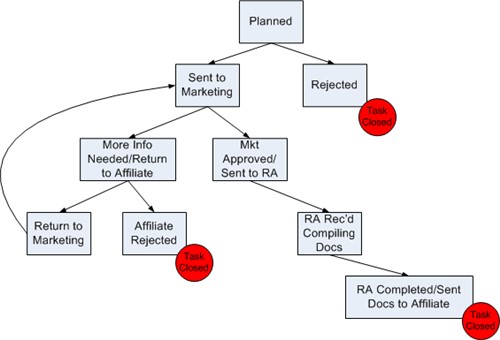
As this example illustrates, Ennov InSight displays only the statuses a user can progress to - a task with a Planned status can progress only to the Send to Marketing status or to the Rejected status. These are the only statuses available when a user modifies the task status.
If you do not set up a task status progression, users can choose from any of the available statuses when they modify the task.
Note: After a progression has been defined for a specific task type/secondary task type combination, associating the secondary task type with a different task type causes errors in the system. If there is a need to associate the secondary task type with a different task type, create a new Task Type/Secondary Task Type combination using Data Admin > Task Maintenance > Secondary Task/Sub-Task Type Values.
Create a Task Status Progression
You can create a task status progression in Data Administration.
To create a task status progression:
- On the home page, choose Go To > Data Administration.
- Scroll to Task Maintenance.
- Choose Task/Sub-Task Status Progression.
- Click
.png) .
.
The Status Progression Map page opens.
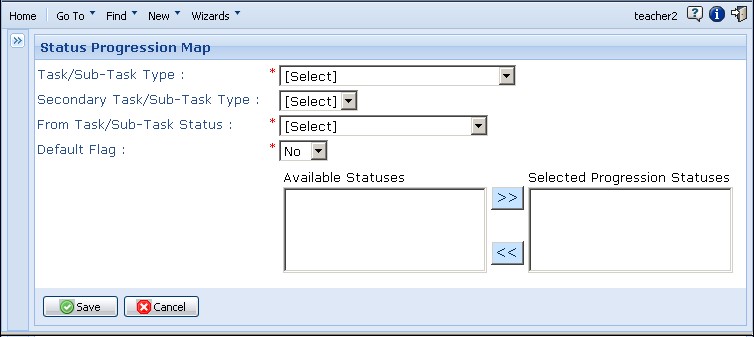
- Click the Task/Sub-Task Type arrow and choose the Task Type to which this progression will apply.
- Click the Secondary Task/Sub-Task Type arrow and choose the
secondary task type.
The available drop-down list values depend on the Task Type you choose in step 5. These values must be configured first in Data Admin > Task Maintenance > Secondary Task/Sub-Task Type Values.
- Click the From Task/Sub-Task Status arrow and choose a status from which the task will progress.
- Click the Default Flag arrow to indicate whether this task status should be the default status value displayed when the user creates a task of the type/secondary type combination chosen in steps 5 and step 6 above.
- From the Available Statuses box, choose statuses that should be
the next set of statuses available and move them to the Selected
Progression Statuses box.
If the current status of the task is the same as the From Task Status you chose in step 7 above, when you modify a type/secondary type task the list of available statuses that the task can progress to are those listed in the Selected Progression Statuses in step 9.
- Click Save.
Modify a Task Status Progression
You can add, modify, activate, or deactivate a task status progression in Data Administration.
To modify a task status progression:
- On the home page, choose Go To > Data Administration.
- Scroll to Task Maintenance.
- Choose Task/Sub-Task Status Progression Values.
- From the list provided, click the progression you want to
modify in the From Task/Sub-Task Status column.
The Status Progression Map for the selected progression is displayed.
- Make the necessary updates.
| Action | Procedure |
| To deactivate the progression | Click Deactivate. |
| Action | Procedure |
| To reactivate a deactivated status progression | Click Activate. When you modify a task, a deactivated progression is no longer available. |
Example
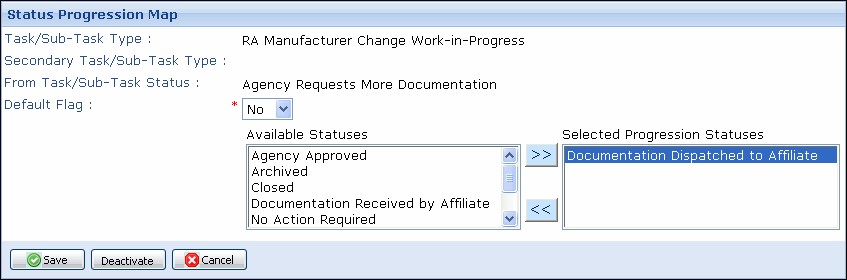
6.
Click
Save
.